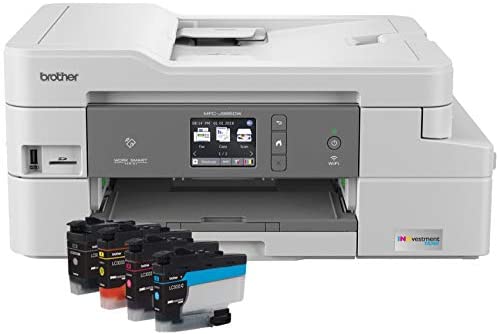
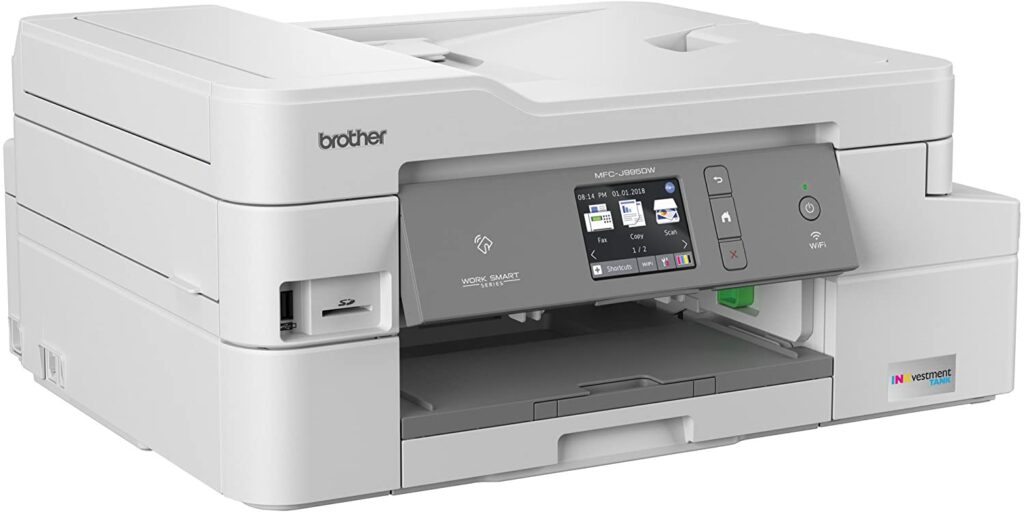
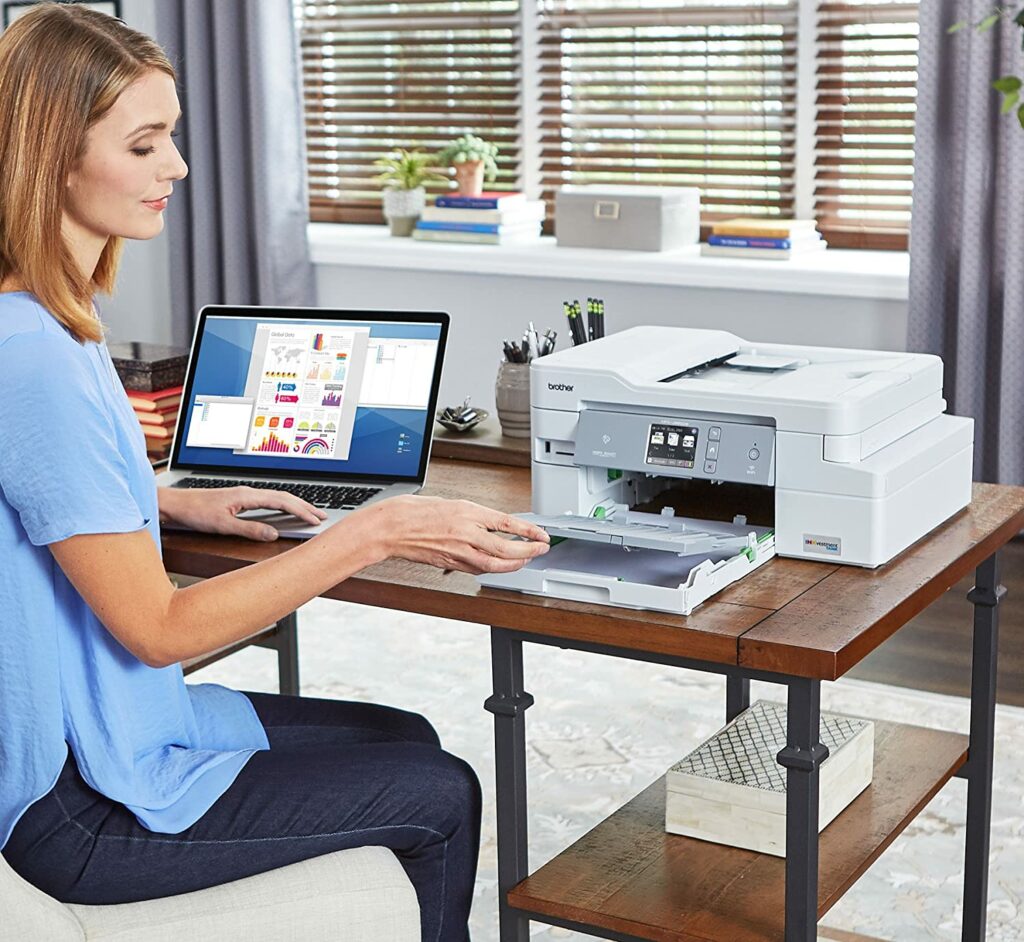
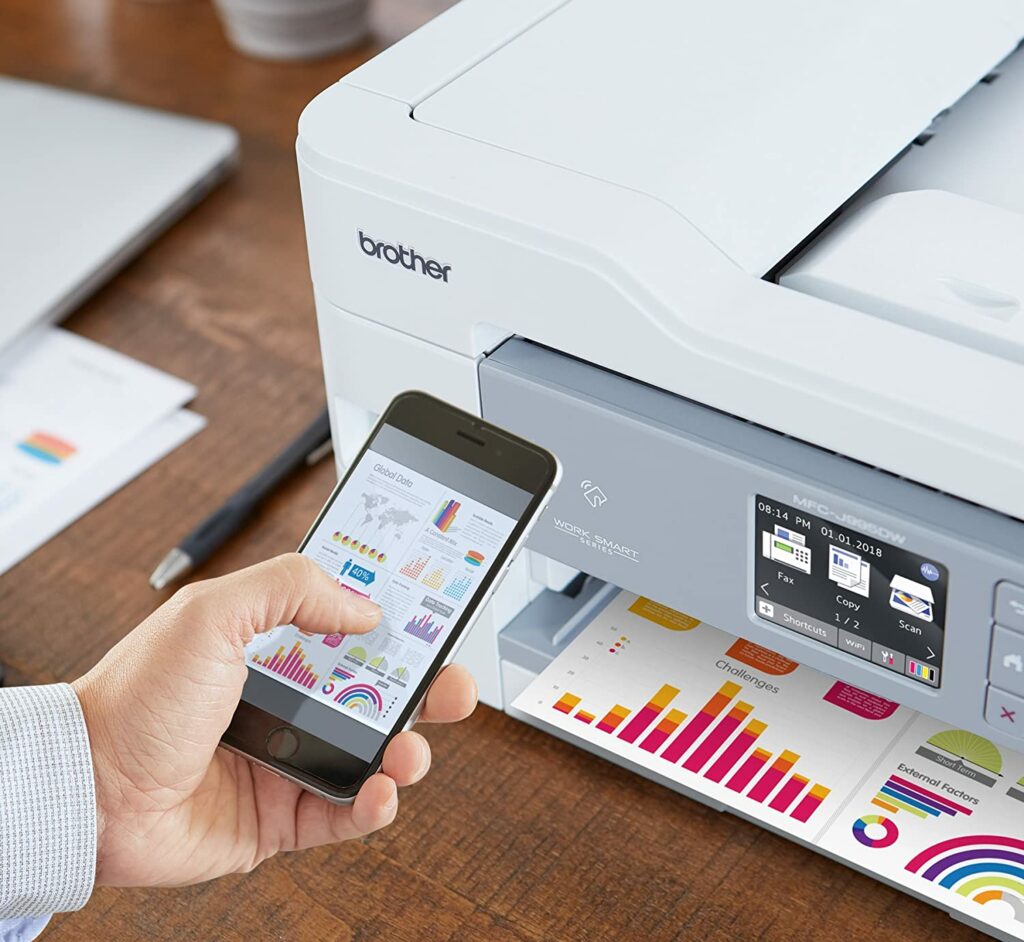
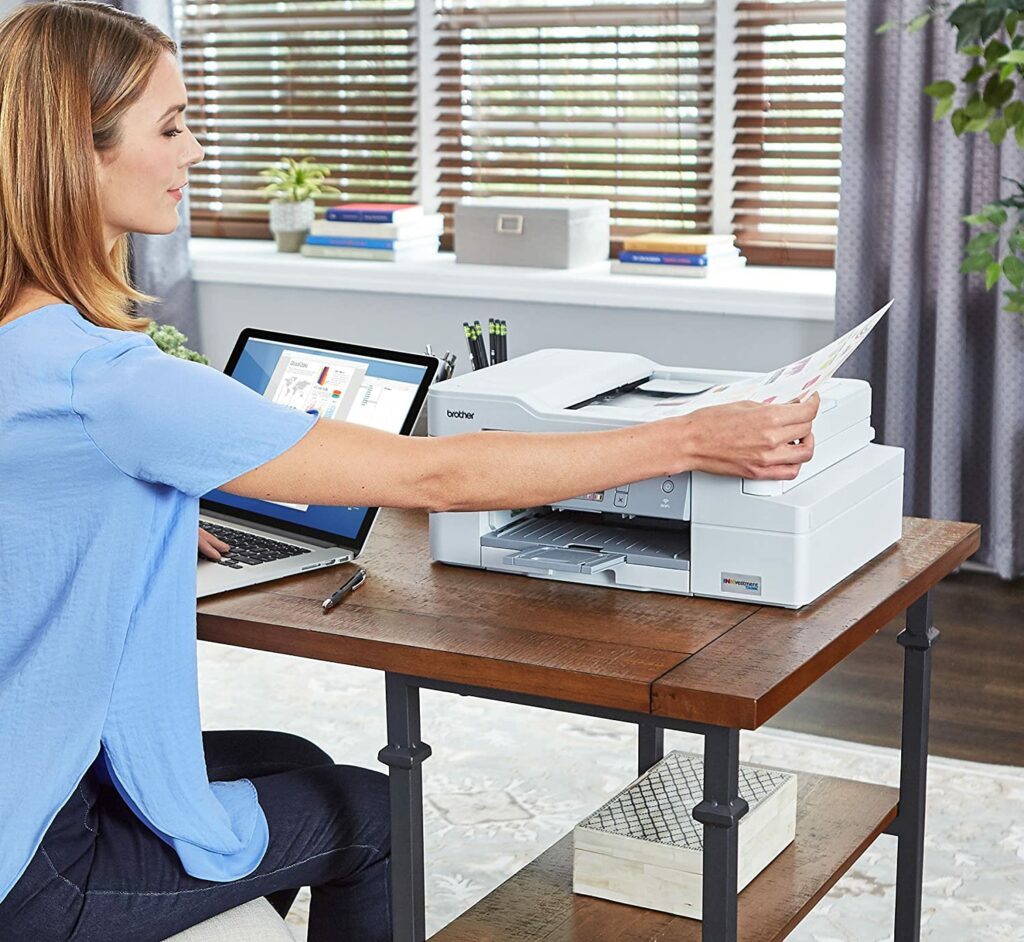
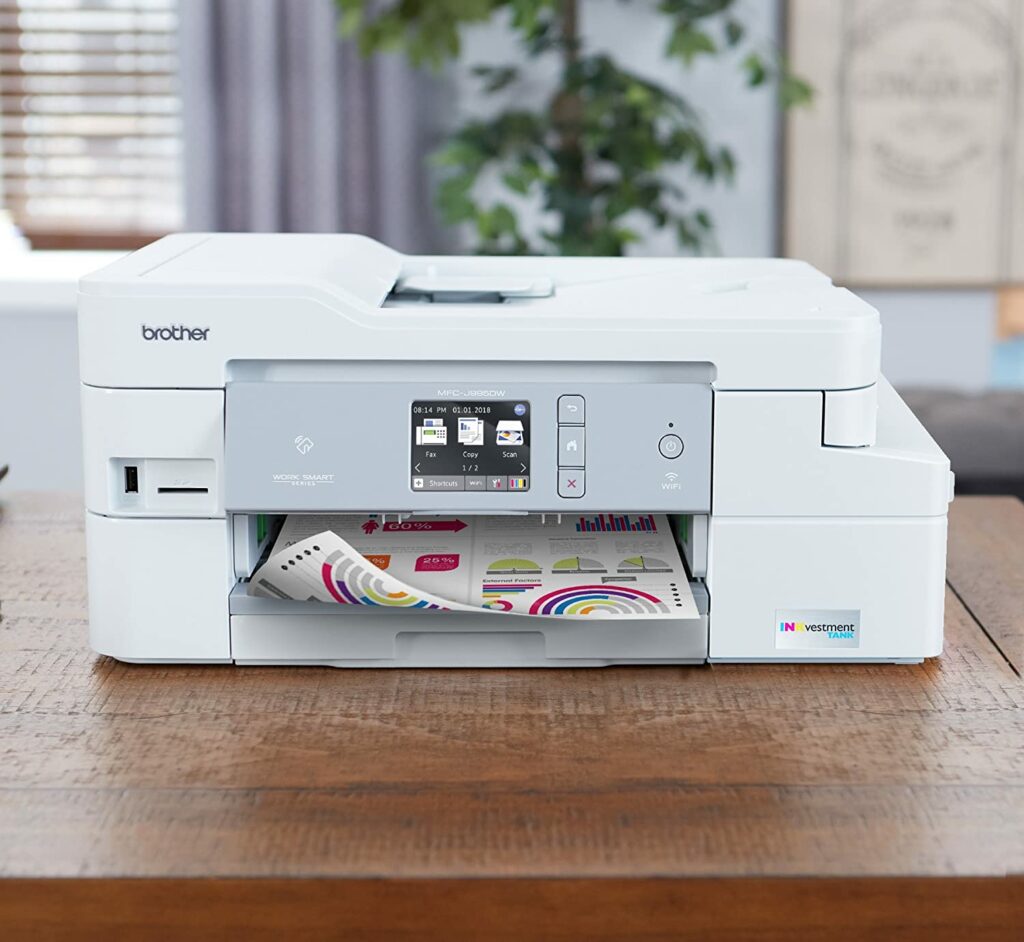
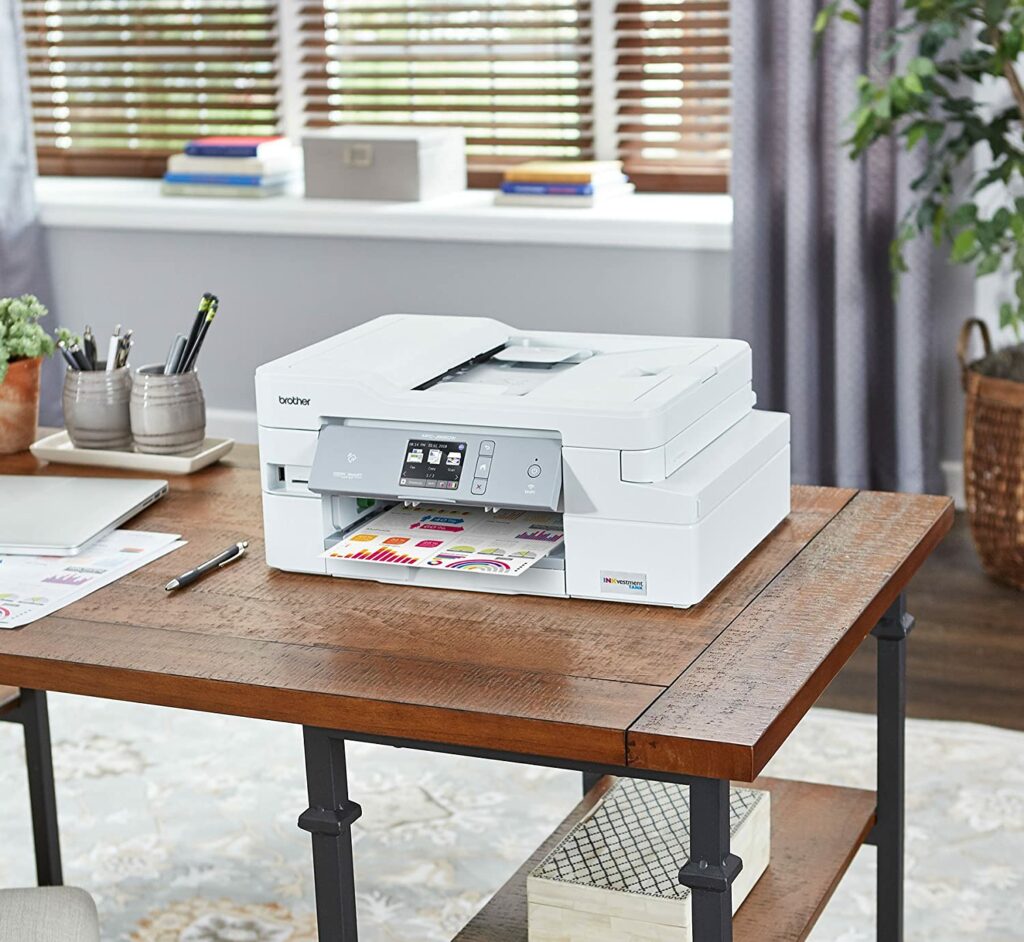
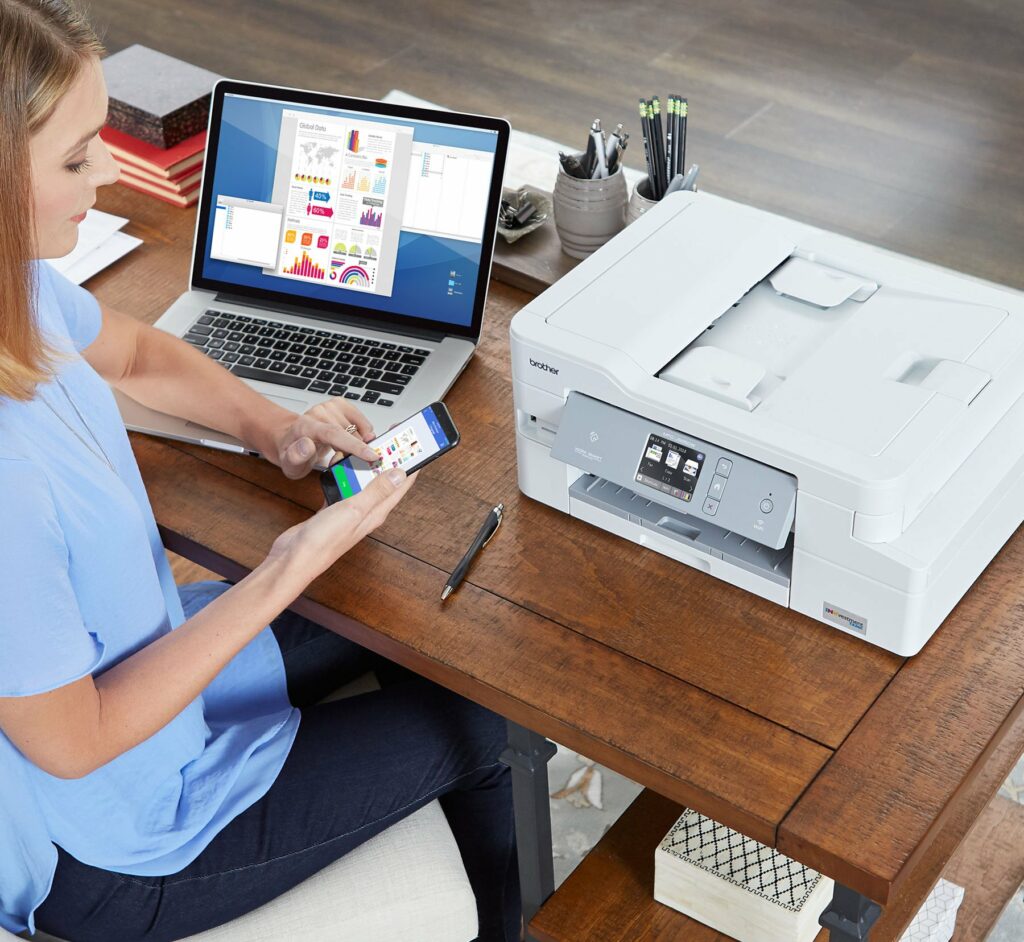
Small offices and home offices alike will appreciate the Brother MFC-J995DW All-in-One Printer, which delivers a nice blend of convenience and productivity advantages. This particular printer provides a lot of versatility in any environment you put it in thanks to its excellent features. If you’d like to learn more about this printer, just keep scrolling to read our review below.
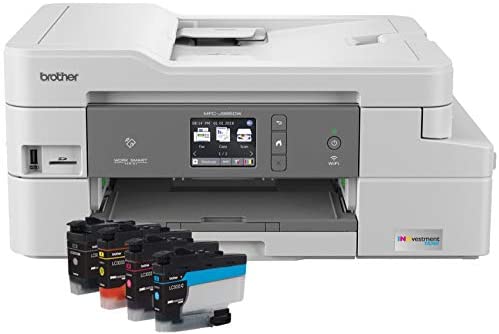
The Brother MFC-J995DW is an all-in-one inkjet printer that can handle practically any task you throw at it. This printer features a flatbed scanner with high resolution and color depth, as well as a sheetfed scanner that can automatically handle multi-page documents. It supports Apple AirPrint for mobile printing, as well as Ethernet, USB cable, and Wi-Fi printing.
While it’s a printer ideal for home offices, this particular model is also versatile enough to be used in plenty of other areas such as smaller offices. Thanks to its impressive INKvestment Tank System, the MFC-J995DW can easily yield larger volumes of paper without a fuss. On top of that, the INKvestment Tank System also allows the cartridges to be replaced less frequently, cutting the cost-per-print.
However, when it comes to photo printing, the results may just be slightly less than ideal. Although the photos printed look to have some little banding, they appear to still be detailed and of decent quality. On the upside, the two input trays can easily handle a variety of paper sizes, with the rear feeder working best for smaller photo paper.
You should be aware, however, that while the first page prints quickly, the printing performance for subsequent pages does not improve at all. In addition, the color accuracy is just passable. This color quality should be sufficient for most casual printing, but it is not recommended if accurate color reproduction is necessary for your line of work.
It’s also worth noting that the Brother MFC-J995DW does not allow Bluetooth printing. I don’t find this minor drawback particularly a major deal-breaker but that depends on who’s using it. Regardless, this is a terrific multi-functional printer that is ideal for both home and small office use.
To be honest, the MFC-J995DW’s overall design is pretty plain and there’s really nothing extraordinary about it. However, the simplicity and straightforwardness of its design make it very user-friendly and easy to understand even for people who are not so knowledgeable about handling complicated printing machines. So this is something I can truly appreciate and commend.
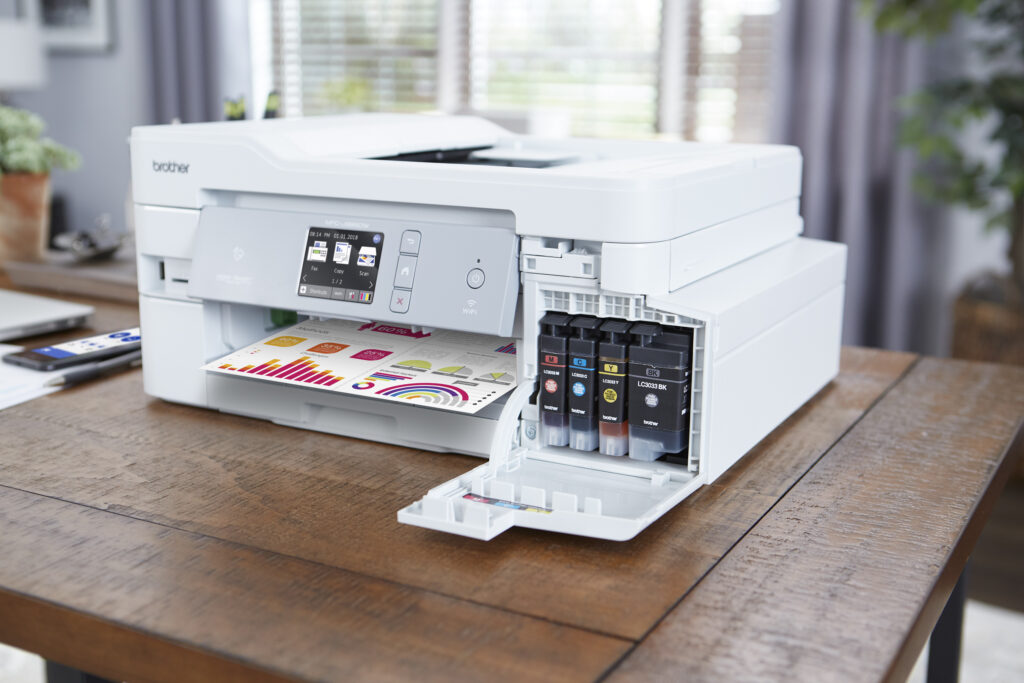
Weighing in at 19.2 pounds with dimensions of 7.7 by 17.1 by 13.4 inches (HWD), the printer’s general construction feels really solid and sturdy. The ink cartridges are easily accessible from the front, and the scanner lid and input tray are quite well-made. But the power wire isn’t removable.
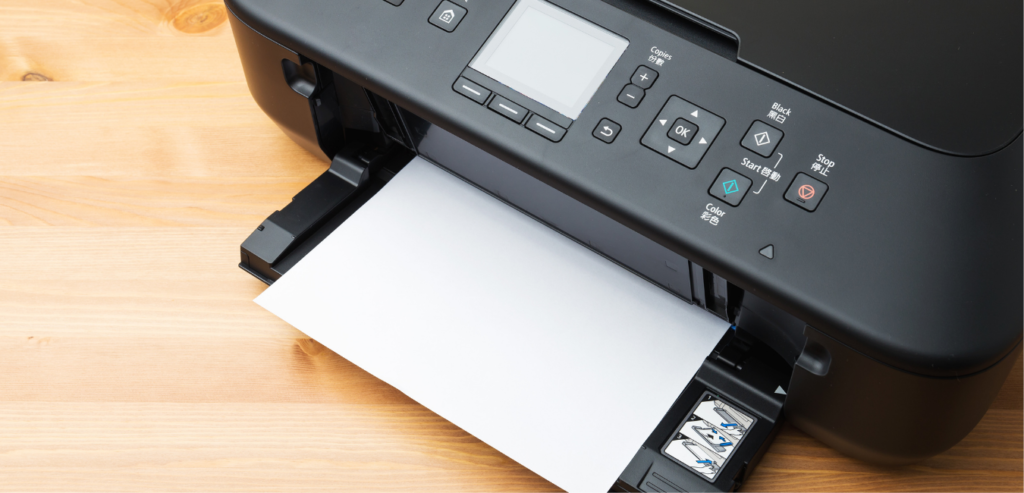
The front control panel is angled upward 45 degrees, making the 2.7-inch color touch screen easier to operate. Most menu selections were easy to navigate using the touchscreen display, while items that required a full keyboard to fit on the screen, such as a Wi-Fi password, made operating it a little more difficult. If you’re going to put the unit on a low table, the panel should be slanted upward 90 degrees.
The USB and ethernet connections are situated inside the printer, underneath the scanner bed, and the cables are routed through grooves to the printer’s back. If you plan on using these ports, the cable routing will reduce the length by roughly one foot, thus you may need longer cords. Wireless, USB, and Ethernet connections are available, as well as near-field communication (NFC) for usage with a mobile device.
Cartridge System
Brother has dropped a new generation of its INKvestment ink-cost savings technology with the MFC-J995DW, which carries more ink per cartridge. The INKvestment Tank System is a cross between a conventional cartridge system and a cartridge/onboard tank setup. When you’re short on cartridges, you still buy and replace them, but the cartridges are now emptied into internal secondary tanks.
The electronics of the cartridge have been shifted to the interior tanks, resulting in a large increase in the capacity of each of the replaceable cartridges, which as Brother claims, up to one year’s worth of ink.
In addition, instead of displaying those terribly inaccurate ink volume indicators, Brother instead has included a gauge in the MFC-J995DW that counts how many pages you’ve printed and estimates how many you have left. The printer also monitors ink levels and alerts you when they’re low, similar to HP’s Instant Ink program, and you can order replacement cartridges straight from the control panel.
Printing Quality
Across the board, the printing quality of the Brother MFC-J995DW was excellent. The text was sharp and dark, though duplex printing produced somewhat lighter text. Colors were decent and beautifully saturated, and graphics were reproduced with a lot of detail. Graphics looked just as good in duplex prints as they did in single-sided prints too.
However, color accuracy could use some improvements and if you’re looking for a printer to use mainly for photo reproduction, this might not be the printer for you.
Printing Speed Is Okay
When you’re in an office setting, quick and fast outputs are key to maximum productivity. Especially if one of your regular daily tasks includes printing out large volumes of documents. While the Brother MFC-J995DW shines in almost any aspect of printing, its printing speed is no exception.
Overall, the printing speed of the MFC-J995DW is adequate, and it is somewhat faster than other models under the same manufacturer. Producing speed varies little between the first and subsequent pages of black and white documents while printing color pages is just as fast as printing black-only documents.
Our Least Favorite Things
Photo Printing Output Is Subpar
The biggest disadvantage I found with the Brother MFC-J995DW Printer is its photo printing output. It’s actually not that bad and it’s decent enough to suffice for casual photo prints that don’t require you to print out with 100% color accuracy, however, it definitely could use some improvements. Scanning photographs also somewhat resulted in muddy outputs that lacked contrast and detail.
In A Nutshell
Now that we have discussed the things we liked and disliked about the Brother MFC-J995DW, here is a narrowed-down list of the good and the bad with this particular printer.
Pros
Perfect for family use and home/small office use.
Excellent printing capacity that can easily handle printing large volumes of documents.
INKvestment Tank Ink system allows you to save money from replacing your ink cartridges too often.
Simple, straightforward design with a sturdy, high-quality build.
Cons
No Bluetooth capabilities.
Photo printing is just okay.
Our Final Verdict
The Brother MFC-J995DW is an all-in-one wireless inkjet printer that’s ideal for both home and small office use. This model includes a number of small office capabilities that allow it to yield large volumes of pages as well as high-capacity ink cartridges at a low cost per page all thanks to its INKvestment Tank System. According to Brother, the INKvestment Tank cartridges included in the package might last up to a year, making it one of the greatest all-in-one printers for low-cost ink we’ve seen in the market.
Do you already own the Brother MFC-J995DW? Or are you still contemplating it and checking out other printers? Let me know in the comments section below if you have insights, questions, or suggestions to share. I would love to hear all your thoughts!
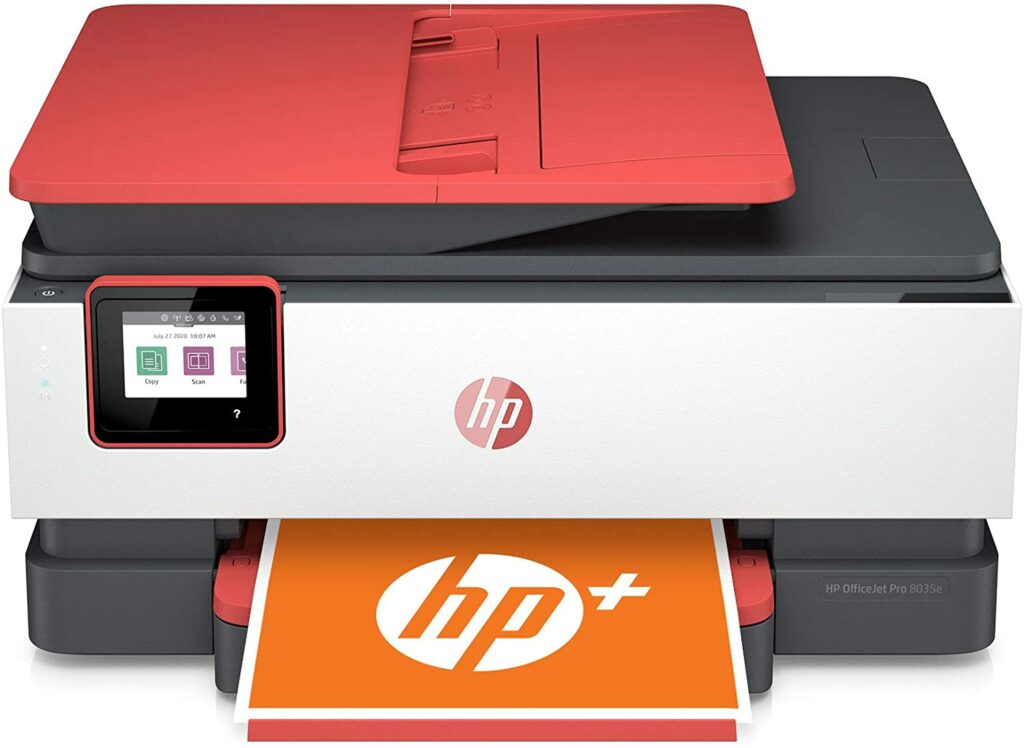
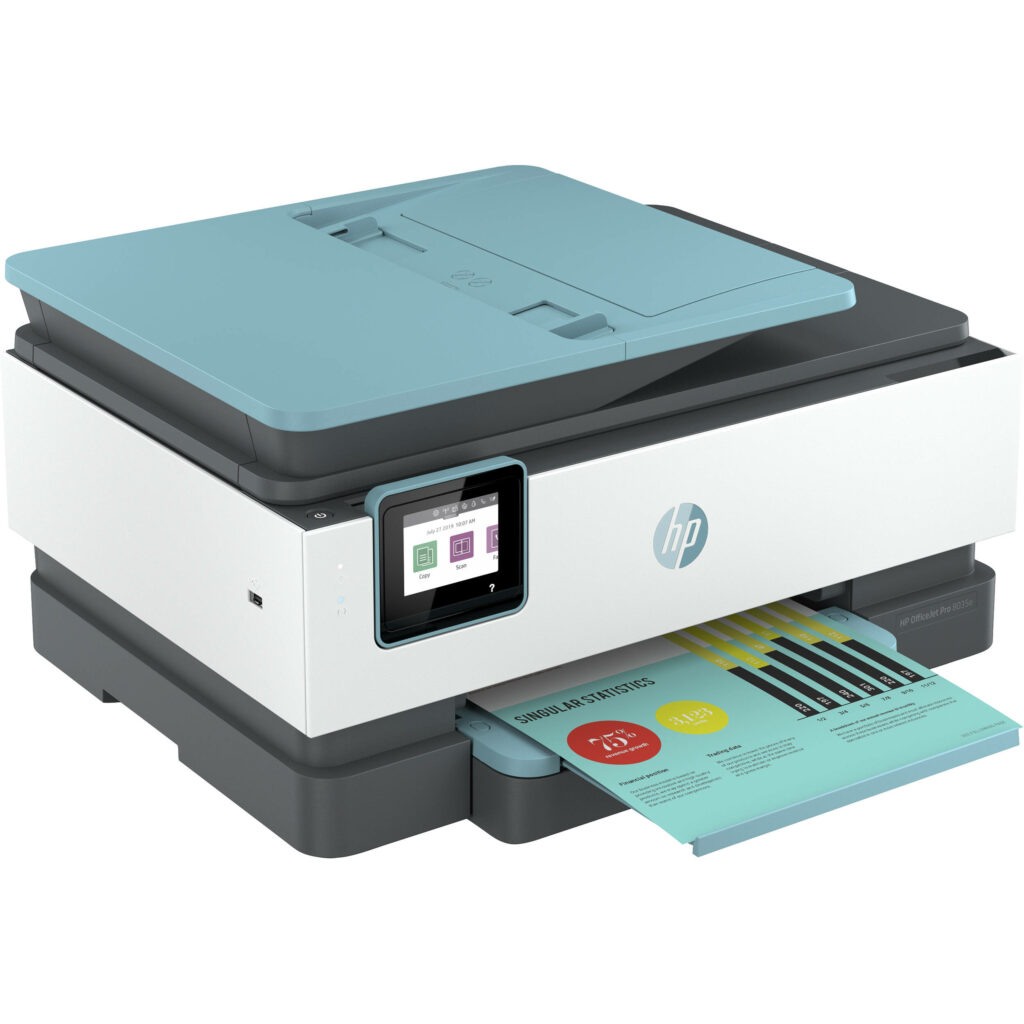
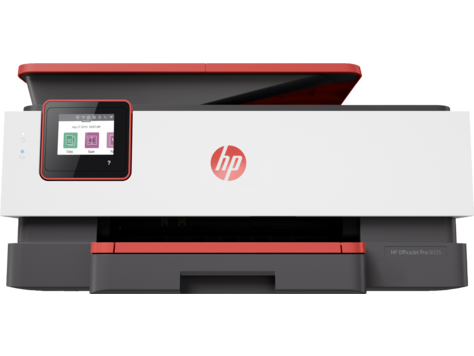
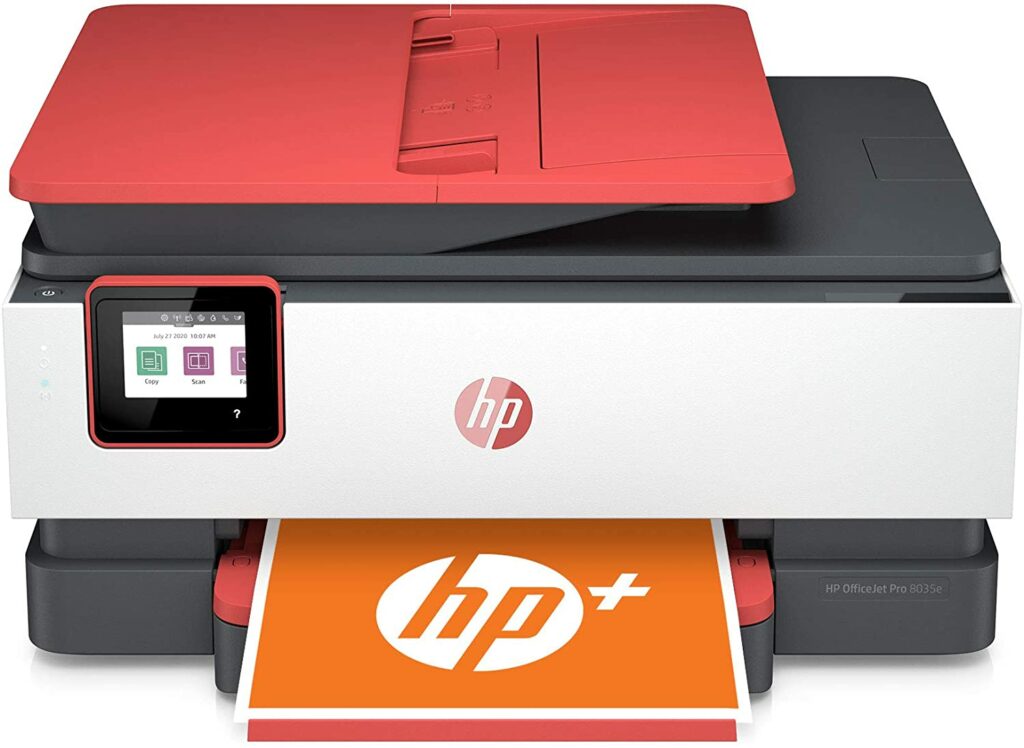
The HP OfficeJet Pro 8035e looks really attractive with its colorful accents of teal, coral, and gray while being compact enough to sit comfortably on a desk in your home office without taking up too much space. It’s an all-in-one inkjet printer that prints out pages relatively quickly and boasts an array of enhanced security features plus more. Interested? Just keep scrolling to find out more of our review below
The HP OfficeJet Pro 8035e All-in-One Wireless Printer is a multifunction printer that offers you a few extra features that other printers might not have. At first glance, the first thing you see is its pretty stylish and modern design that might catch a lot of eyes and look good sitting at your desk.
This current OfficeJet Pro 8035e is actually the second iteration from HP, preceding the original OfficeJet Pro 8035. But what’s the difference between the two?
Honestly, there is very little difference when you put these two models side by side. The “e”, however, in this second generation model denotes that you get support from HP Plus. Though keep in mind, this is something you must choose during setup or within a week of its initial setup.
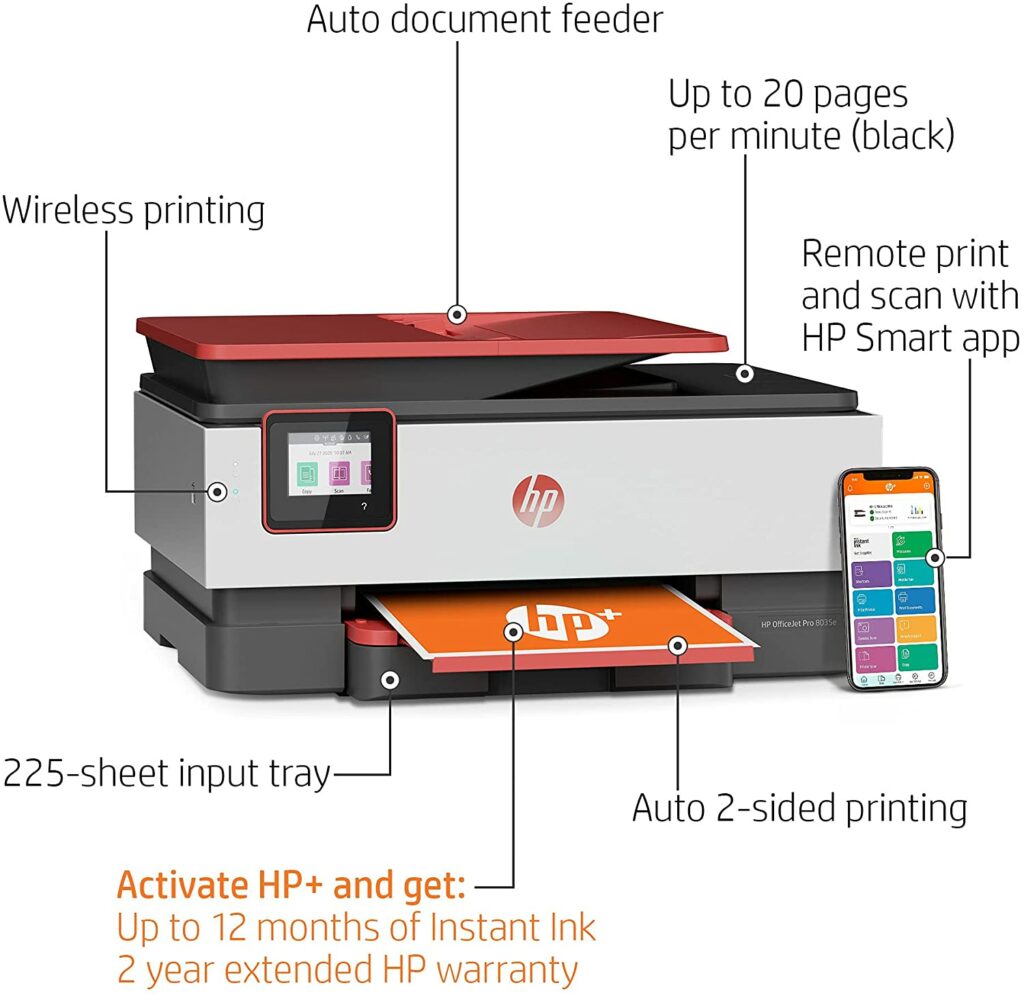
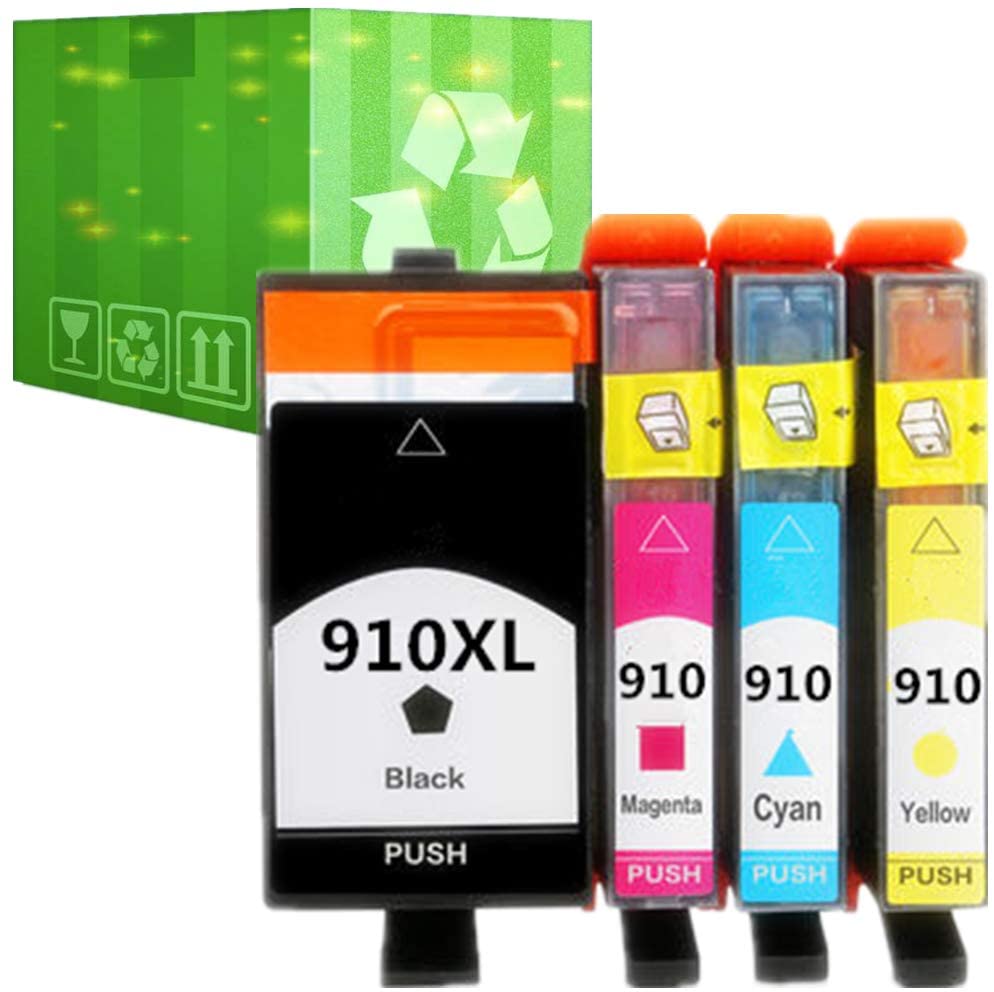
As a result of opting for HP Plus, the printer can only use authentic HP ink cartridges rather than third-party ink. On the upside, you get more benefits. Such as receiving a year’s worth of unlimited free ink, two years of warranty coverage instead of one, plus a handful of very useful features like private printing. This allows you the ability to send a print job to the machine but delay the actual printing until you’re near the printer.
For excellent wireless connectivity, it also has built-in self-healing Wi-Fi, Wi-Fi Direct, and Bluetooth. This eliminates the hassle of connecting your mobile devices for cloud printing using AirPrint or Google Cloud Print.
Not to mention, because it uses Alexa voice commands, you can easily talk to your printer to make it work and start printing away. All in all, this capable all-in-one wireless printer has a lot to offer, including fast printing speeds, a large paper capacity, and user-friendly touchscreen controls that are perfect for anyone.
Specifications & Features
Type Of Printer: All-In-One Printer
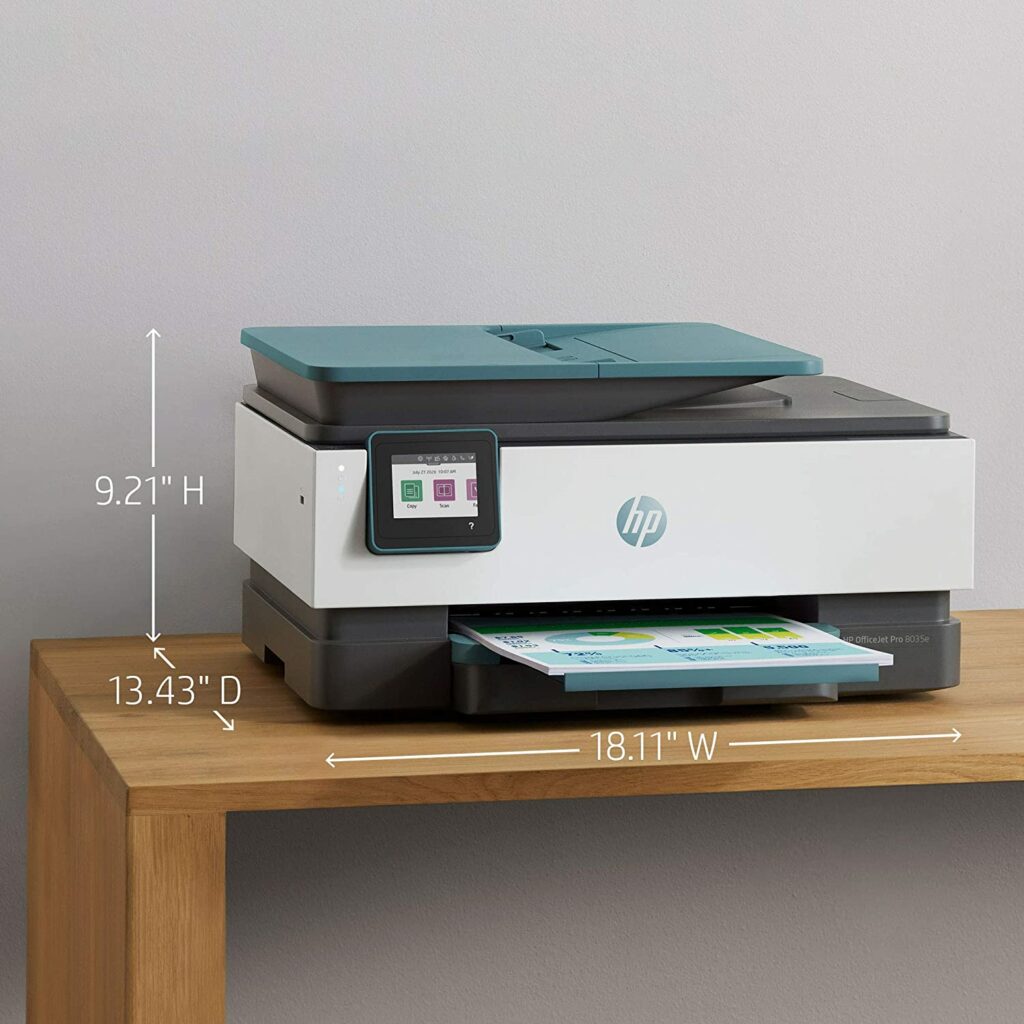
Product Dimensions: 18.11 x 13.43 x 9.21 inches
Product Weight: 18.4 lbs.
Technology: Inkjet
Printing Speed: 20 pages per minute (ppm) for monochrome, 10 ppm for colored prints.
Paper Sizes: Up to A4
Paper Capacity: 225 sheets / 60 sheets
Color: Basalt, Coral, and Oasis
Extra Special Features: Scan, copy, fax, HP+ eligible with Instant Ink included, and onboard Alexa voice command features.
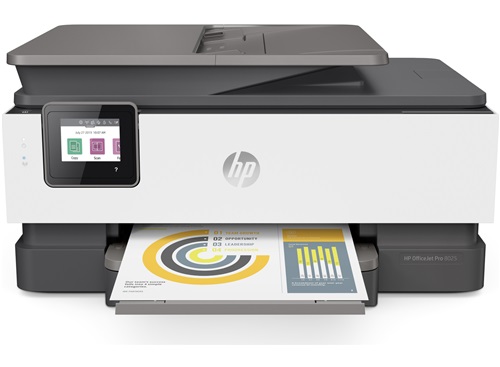
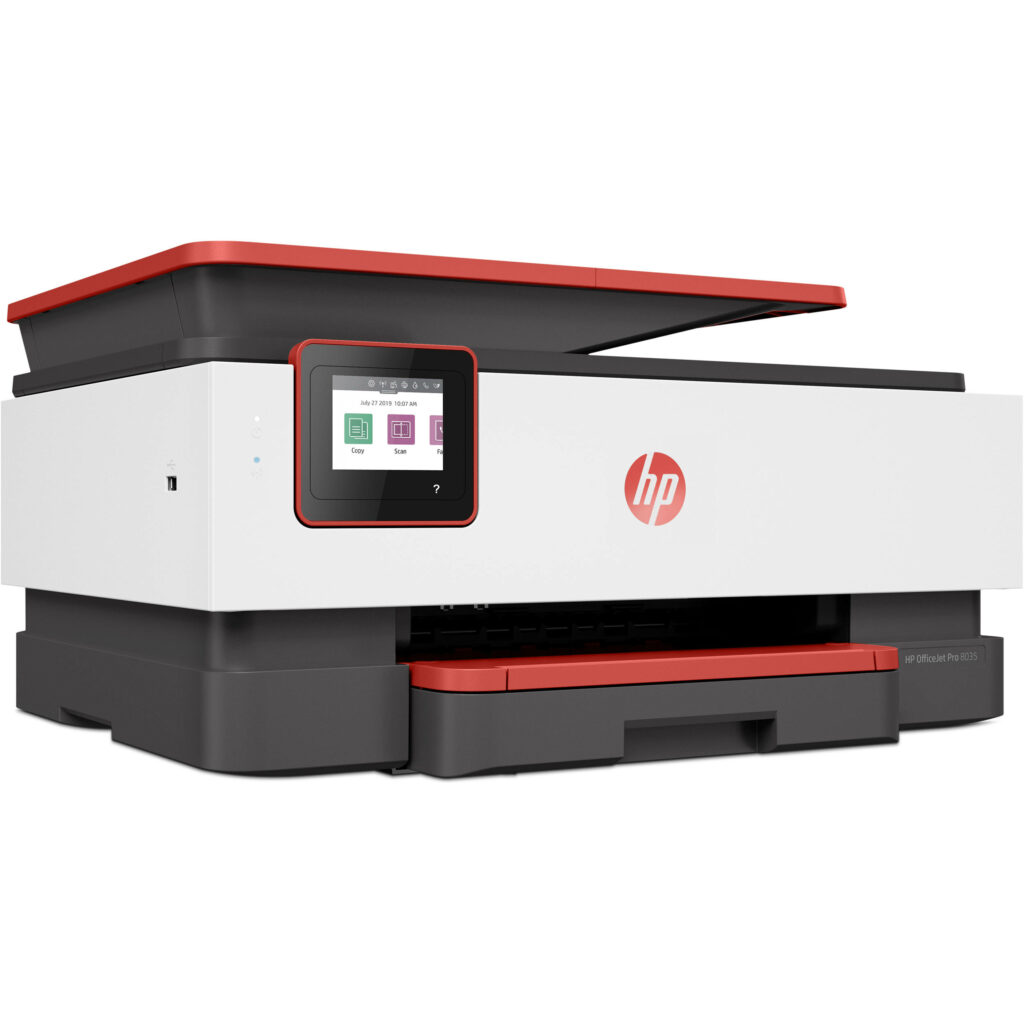
Let me just say right off the bad that the 8035e’s design definitely puts this model as one of the best-looking printers in the market. And this is a bit of a surprise given that the majority of HP’s printers are usually sporting neutral or monochromatic colors. However, the 8035e seems to be an exception to that rule.
The 8035e has a mainly white body with different color accents you can choose from. These accents add a splash of fun and vibrancy to the ADF, paper trays, and display border. There are three different color options available: Coral, Basalt, and Oasis. Depending on how your office setup looks like, you can simply choose a color that complements the rest of your desk so it blends in seamlessly.
As for the build quality, the 8035e feels very sturdy and strong despite the plastic-y chassis. The body doesn’t feel cheap at all and in fact, it feels very solid and smooth to the touch. However, it’s definitely not the lightest printer out there as the 8035e weighs in at 18.4 pounds. So if you’re planning to move your printer around a lot, you might find the task a little heavy for you.
Multifunctional Capabilities
One of the things I absolutely loved about the 8035e is how multifunctional this machine is despite being an entry-level printer from HP.
The HP OfficeJet Pro 8035e is ideal for home offices that need to print a low to medium amount of documents. As a multipurpose printer, it can handle a variety of documents, including printing, scanning, and copying. Not to mention the fact that it also has faxing capabilities.
Most printers from HP use thermal inkjet as their usual printing technology, and the 8035e continues that trend. With a resolution of up to 4800 x 1200 dpi, it promises excellent print output, especially when using the suggested type of photo paper.
The printer’s recommended monthly volume is 800 pages, with a monthly duty cycle of up to 20,000 pages. Although this amount of volume is fairly low compared to other printers in the same range, I feel this is sufficient enough for daily printing in small or home offices. Unless you need to print out huge volumes of documents every day, then the 8035e’s monthly duty cycle is quite decent.
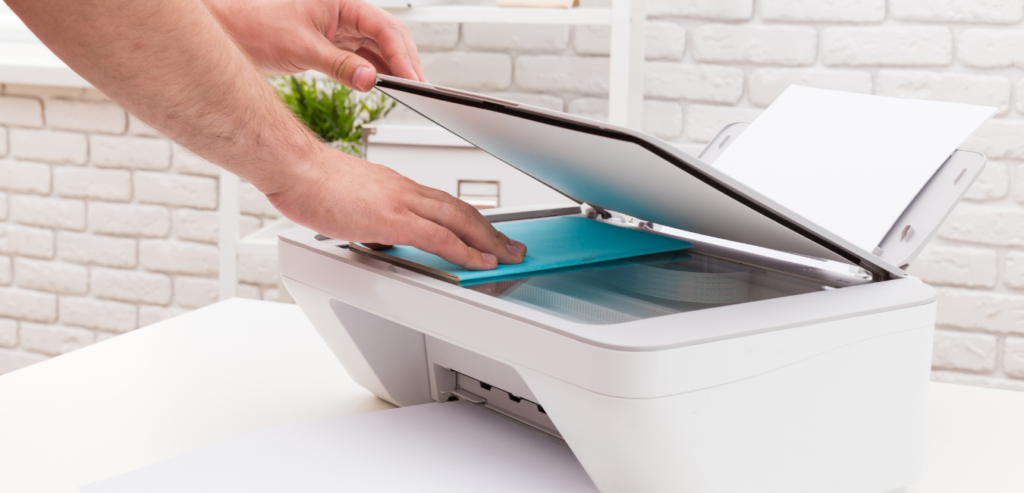
Another standout feature of the 8035e is that it comes with a fairly impressive scanner. It has a scan size of up to 8.5 x 11.7 inches and a resolution of up to 1200 dpi. To add to that, there are also a variety of scan file formats you can choose from. These include JPG, PDF, TXT, PNG, plus more.
On the other hand, the copier in the 8035e doesn’t stand out that much. It works fine with text and graphics resolutions of up to 600 dpi. But I found that printing copies of the same page aren’t as taxing with the 8035e as it can easily duplicate up to 99 pages at a time. Apart from that, the 8035e is also capable of sending and receiving faxes with a transmission speed of 4 seconds per page.
Printing Speed & Output
When compared to other printers in the same price range and level, the OfficeJet Pro 8035e’s printing speed isn’t the fastest out there. Its output quality, on the other hand, is well worth the wait.
The HP OfficeJet Pro 8035e has a black print speed of 20 pages per minute and a color print speed of 10 pages per minute. When dealing with draft materials, the speed increases to 29 pages per minute and 25 pages per minute, respectively.
When it comes to printing output, this is where the 8035e truly shines. It is by no means up to par with actual photo printers but it is definitely enough to satisfy most users, regardless if it’s for personal or professional use.
Every document it prints is well-designed, with no misaligned characters or any odd spacing. The text you get is highly legible regardless of the font size and obviously, the overall quality of the product easily exceeds the standard for professional documents. If your job requires you to print graphs and/or charts, you’re in luck. The 8035e is highly capable of handling these kinds of tasks without difficulty at all.
Our Least Favorite Things
Ink Cartridges Can Get Expensive
While the HP Plus is an amazing option for you to save your budget on a year’s worth of cartridge ink for the 8035e, that single year can also come by quite fast. So once the free year is over, you’ll have to deal with your ink costs from HP and they definitely don’t offer the cheapest ink cartridges in the market.
If your mind is set on getting this particular printer, you best allocate a budget for your ink cartridges a few months before the year runs out. This isn’t a huge deal-breaker in my opinion but this is something to keep in mind.
In A Nutshell
Now that we’ve covered what we liked and disliked about the HP OfficeJet Pro 8035e, here’s a narrowed list of the good and the bad with this all-in-one wireless printer.
Pros
Works well with Alexa voice commands.
You get support from HP+ and enjoy its benefits.
Speedy printing capabilities.
Excellent wireless connectivity with lots of options to choose from.
Cons
Ink cartridges can get expensive.
Our Final Verdict
All in all, the HP OfficeJet Pro is a really good and solid choice for a printer if you’re in the market for one. Though I highly recommend this printer mainly for home use or for home offices that don’t require printing large chunks of paper on a daily basis. Its printing output is excellent while also offering you a plethora of useful features that can come in handy at any given moment.
Have you already bought the HP OfficeJet Pro 8035e? Or are you still contemplating it? Let me know in the comments section below if you have any questions, suggestions, or insights to share. I would love to hear all your thoughts about this printer!
These days, the best printers for your home are ones that don’t require to be connected to a USB cord or an Ethernet in order to function. It’s now easier than ever to print out multiple pages of paper for people without having to physically connect their printing machines to their desktop PCs, laptops, or even smartphones. With that in mind, below are our top picks for the best wireless printer for home use this 2021.
For some of you, choosing a wireless printer may seem like a pretty easy task. Especially nowadays, most printers have various wireless capabilities as well as offer other connectivity options for you.
However, it can also get really confusing and overwhelming pretty quickly once you look up the endless list of printers to choose from in the market. Not to mention, the numerous onboard features you also need to keep in mind. So to make things simpler for you, we’ve listed down our top choices for the best wireless printers for home use this 2021.
Depending on how you’re planning to use your wireless printer, you might prefer certain units over others. But whatever may the case be, you will surely find the one that suits you best in this article.
Affiliate Disclosure: I am grateful to be of service and to bring you content free of charge. In order to do this, please note that when you click links and purchase items, in most cases I receive referral commissions. Eventually, I may earn enough to buy a beer or two.
What’s The Main Purpose Of Your Home Printer?
Since its invention, printers have gone a long way from simply printing out words on paper. The best printers nowadays are wireless with lots of connectivity options while also delivering photocopying, scanning, and faxing capabilities for optimum versatility. But depending on your criteria and how you plan to mainly use your printer, the “best printer” can differ from one person to another.
At the end of the day, most of you surely want a machine that you can use to its maximum potential without wasting the money you spent on the device. So it’s very important for you to keep in mind what you want your printer to do for you. Do you mainly just want it to print words on a piece of paper for you? Or do you want a printer that can produce high-quality photos and scans as well?
Printers differ significantly depending on how you plan to use them. Is it for home use? Commercial or business use? Or both? Apart from that, printers also depend on the things you’re going to print. These can include text, graphics, photographs, labels, and whether you’ll be printing in color or just in black and white.
The majority of printers are made for either business or personal use. Business printers are mainly designed to print out text and graphics, whereas home printers (primarily inkjets) are usually designed for images or photocopying. With that in mind, we’ll only be focusing on the best printers for home use in this article.
Specialty Printers
Dedicated and near-dedicated photo printers, as well as label printers, are what you may call “specialty printers”. 3D printers are even more so a special case, even among specialty printers, and are beyond the scope of this subject.
Even if you’re only planning to print images, there might be times where you may want your printer to do more for you.
So before making any hasty decisions, I do highly recommend that you understand first the full breadth of your printing requirements before purchasing.
Inkjet Vs. Laser Types
Although the capabilities of the two most prevalent technologies used in printers: laser and inkjet, are continuously overlapping, there are still significant differences between the two.
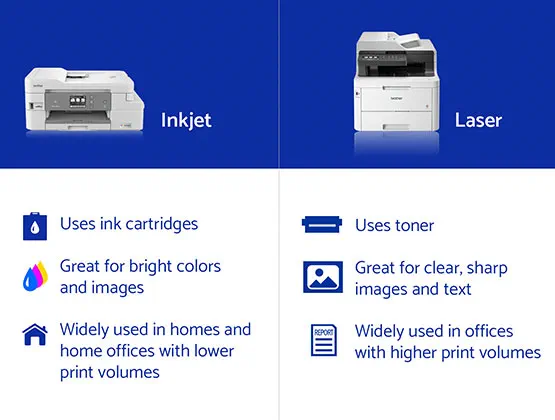
Inkjet printers – dye or pigment-based ink is used in inkjet printers. They’re an excellent choice for customers that need high-quality graphics and print a lot of them. Home users, as well as home, school, and small offices that print image-heavy documents, choose inkjet printers.
Laser printers – toner is used in laser printers to print text and graphics. They’re typically larger than inkjet printers and print at a faster rate. Due to its business-focused features, such as optional trays for greater capacity, huge replacement supply yields, and superior security features, laser printers are frequently chosen by larger enterprises and busy offices with high print volumes.
To put it simply, most laser printers and/or LED printers (which are identical to lasers except for the fact that they use LEDs as a light source) print higher-quality text than most inkjets printers. On the other hand, almost any inkjet units print higher-quality photos than most lasers.
Though it’s best to keep in mind that both technologies have advanced significantly in recent years and you might find certain printers that will exceed your expectations. Not to mention, you may be surprised to learn which is best suitable for your needs.
Types Of Printers
If you’re still a little confused about printers, that’s okay. Apart from inkjets and laser printers, I have also listed below some of the most common types of printers you might encounter in the market. Perhaps explaining the different kinds of printers will help give you an idea of which one to go for.
Home Office Printers
The majority of home-office printers are inkjets designed for low- to mid-volume printing. The majority of them might also be multifunction printers that provide a great deal of versatility to users. They’re also designed to print text and graphics over photographs.
When it comes to paper capacity, home office printers can range anywhere from 100 sheets to 500 sheets (though this is usually seen in higher-end models). Most of these printers are also suitable for use in so-called “micro offices” that has more or less five workers.
Aside from that, many of these home office printers are also suitable for use in home residences, particularly if a student will be constantly printing a large number of documents for their school.
Home Printers
One thing that you shouldn’t do is to mix up home printers and home office printers. They may sound similar since both printers are usually found in a home setting, but they often have very different capabilities.
Despite being predominantly inkjet printers just like home office printers, home printers are primarily designed for low-volume printing. They’re slow and usually quite expensive to print with due to their high ink costs.
You should also note that text and graphics do not print as well as photographs with home printers too. However, almost all of these home printers are multifunction or “all-in-one” printers that can scan, copy, and fax in addition to printing for you. If you’re on a budget, this might not be the most suitable printer for you.
Business Printers
Unlike home printers and home office printers, business printers come in a variety of choices. They can range from small single-function devices for low-volume printing to massive floor-standing units that can cater to your whole office department’s printing needs.
The majority of these business printers are usually laser types, but inkjets are also gaining traction. In addition to that, the majority of business printers are also multifunction machines. Many still print primarily in black and white while also preferring to produce text and graphics over photos.
To multiple businesses and offices, a printer’s speed and paper capacity are its most important features. The cost of the printer is also a consideration. But in general, the more expensive the printer is to buy, the lower the per-page printing costs will be. So buying a higher-end model might save your business more money in the long run when it comes to printing.
Bulk-ink models have the lowest per-page prices, and ink subscription plans are now available to help offset the cost of ink and toner. Most business printers also come in handy with security features like password-protected printing, and some even come with extra special features like an encrypted hard drive or an ID card reader to make sure your files and documents are well protected.
Photo Printers
This type of printer is primarily created with both professional and amateur photographers in mind. Photo printers usually can print both text and images, but their primary use is to print high-quality photographs.
Some are wide-format printers with enormous frames that can handle big-format paper, and many can also print from rolls of paper. They employ up to a dozen ink cartridges to give you precise and accurate colors. Because of the amount of ink they use and the high-quality paper they use to get the best results, you might find yourself spending a lot more per page.
Additionally, there is also another type of printer which can also fall under photo printers called “small-format photo printers”. These special printers are designed to print exclusively photographs for their users. Print sizes range from wallet-size to 5 by 7 inches. Though keep in mind that certain models can only print one size.
Most of these dedicated printers are also lightweight and come with a battery or may be used with one that you’ll need to purchase separately.
Label Printers
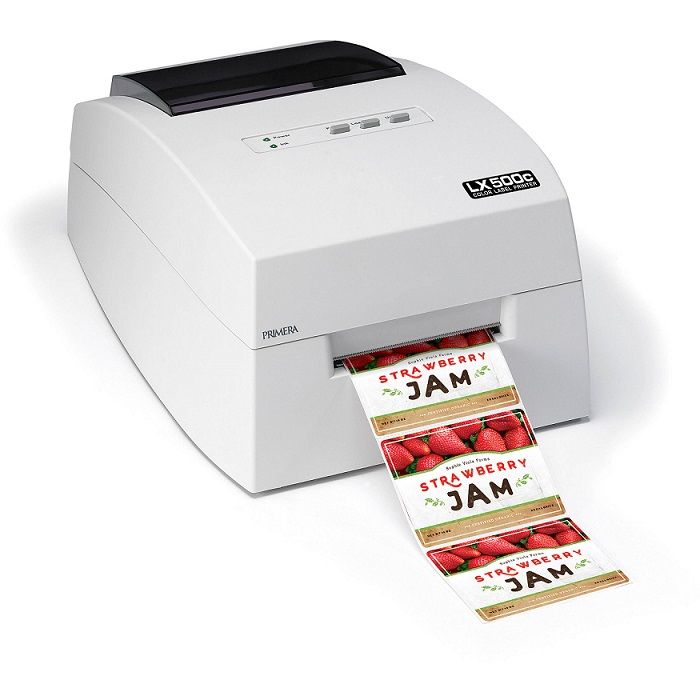
Label printers are designed to print labels on paper or plastic. Some come with label-creation software or applications which you can link to your computer or smartphone. While others are stand-alone devices with a small built-in keyboard that you can use to design and print your own labels. Usually, these stand-alone label printer manufacturers offer a wide range of label colors and types for you to choose from.
Well, now that we have finished discussing the different types of printers you might come across in the market, let’s dive right into our top picks for the best wireless printers for home use this 2021.
Our Top Recommendations
1. HP OfficeJet Pro 8035e Wireless Printer
Overview
With its colorful accents of either coral, teal, or gray, the HP OfficeJet Pro 8035e (also known as the OfficeJet Pro 8025 in the UK) appears stylish and tiny enough to fit comfortably on a desk in your home office without taking up too much space.
It also boasts built-in self-healing Wi-Fi, Wi-Fi Direct, and Bluetooth for superb wireless communication. This makes connecting your mobile devices for cloud printing using AirPrint or Google Cloud Print a breeze without any fuss.
Not to mention, because it works with Alexa voice commands, you can easily talk to your printer to get it to function and come alive. Overall, there’s a lot to appreciate about this capable all-in-one printer, such as its rapid printing speed, huge paper capacity, and user-friendly touchscreen controls.
The Brother MFC-J995DW is an all-in-one inkjet printer that is equipped to handle almost any task you throw at it. A flatbed scanner with high resolution and color depth, as well as a sheetfed scanner that can automatically handle multi-page documents, are among this particular printer’s highlights. It enables mobile printing via Apple AirPrint, as well as Ethernet, USB cable, and Wi-Fi printing.
It has a terrific design that allows for simple access to the ink cartridges from the front, and it seems quite well-made overall. Because of its outstanding INKvestment Tank Ink System, which yields a large number of printed pages, you shouldn’t have to replace the cartridges very often, lowering the cost-per-print.
Although you might notice that there is some small banding in the photos, they still appear to be detailed and of high quality nonetheless. The two input trays can also easily handle a wide range of paper sizes, with the rear feeder working best for smaller kinds of photo paper.
However, you might want to know that while the first page prints pretty swiftly, the printing speed for successive pages does not improve at all. Also, the color fidelity is only decent. For the most part, this kind of color quality should suffice for casual printing, but it isn’t recommended if precise color reproduction is required of you.
Another thing to keep in mind, the Brother MFC-J995DW also does not support Bluetooth printing. Despite that, this is still a very fantastic multi-functional printer perfect for home use.
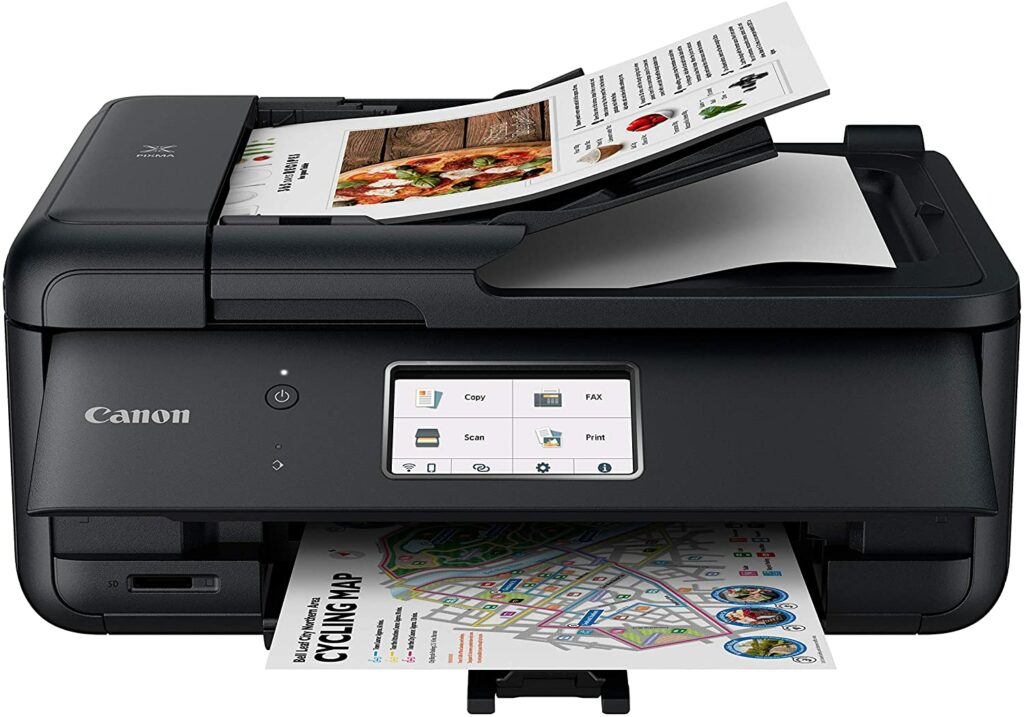
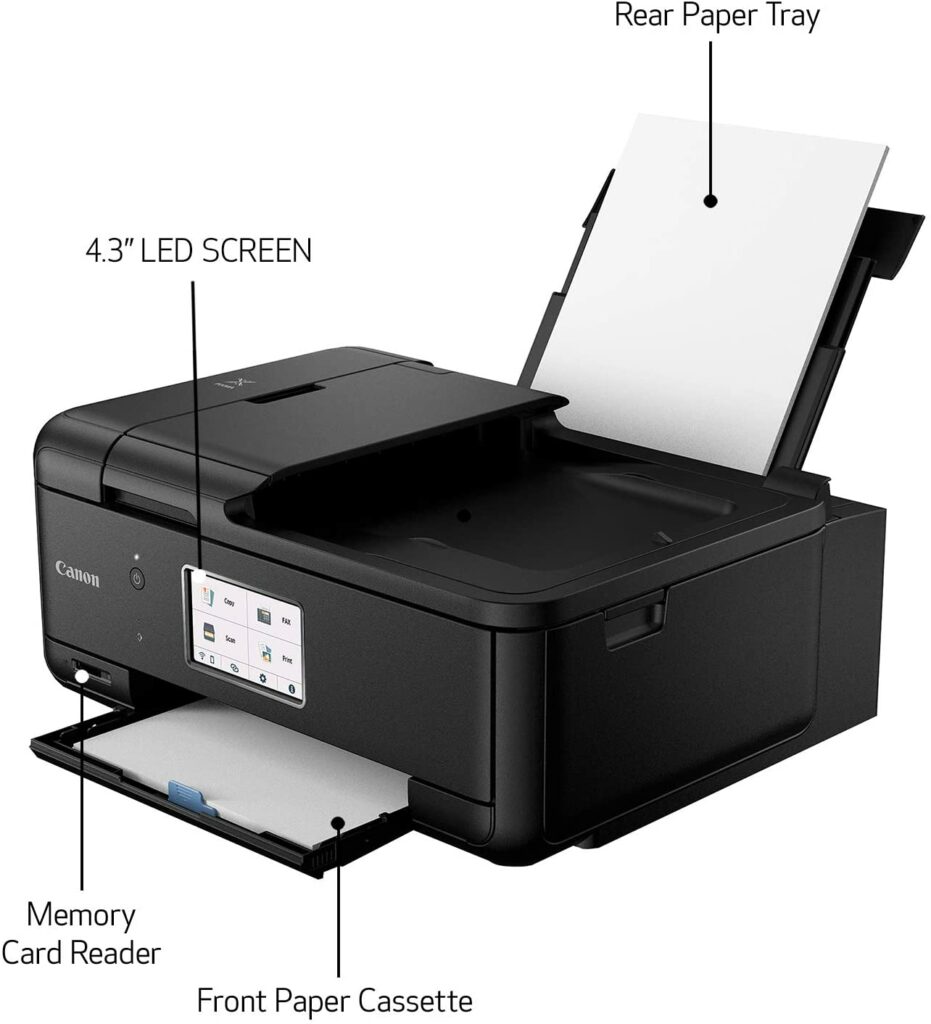
The Canon PIXMA TR8620 is a printer definitely worth checking out if you’re looking for a better photo printer for your home.
It has a much lower page yield and cost per print than the Brother MFC-J995DW while also having slower printing speed, but it certainly produces much better-looking photographs and can also print via Bluetooth connection.
While the Brother MFC-J995DW reproduces colors more accurately, the difference between these two printers is very minimal and you might not even notice it if you’re just using this printer casually and for everyday use.
Photos printed in this machine are produced with high-quality resolution and brilliant colors with no banding. In addition to that, Apple AirPrint, Mopria Print Service, and Wi-Fi Direct are just a few of the networking choices available on the Canon PIXMA TR8620.
Features & Specifications
Type Of Printer: All-In-One
Product Dimensions: 13.8 x 17.3 x 7.5 inches
Product Weight: 17.4 pounds
Technology: Inkjet
Printing Speed: 15 ppm
Paper Sizes: Up to 8.5 x 11 inches.
Paper Capacity: 100 sheets.
Color: Black.
Extra Special Features: 4.3″ LCD touchscreen, 20 Sheet Auto Document Feeder, Canon PRINT app, and Auto 2-Sided Printing.
Pros
Excellent photo printing quality.
Has Bluetooth connectivity and a number of other connectivity options.
Cons
Slow printing speed.
Lower page capacity.
Rating: 9 out of 10.
Where Can I Buy The Canon PIXMA TR8620 All-In-One Printer?
4. Epson Workforce Pro WF-3820 Wireless Inkjet All-in-One Color Printer
Overview
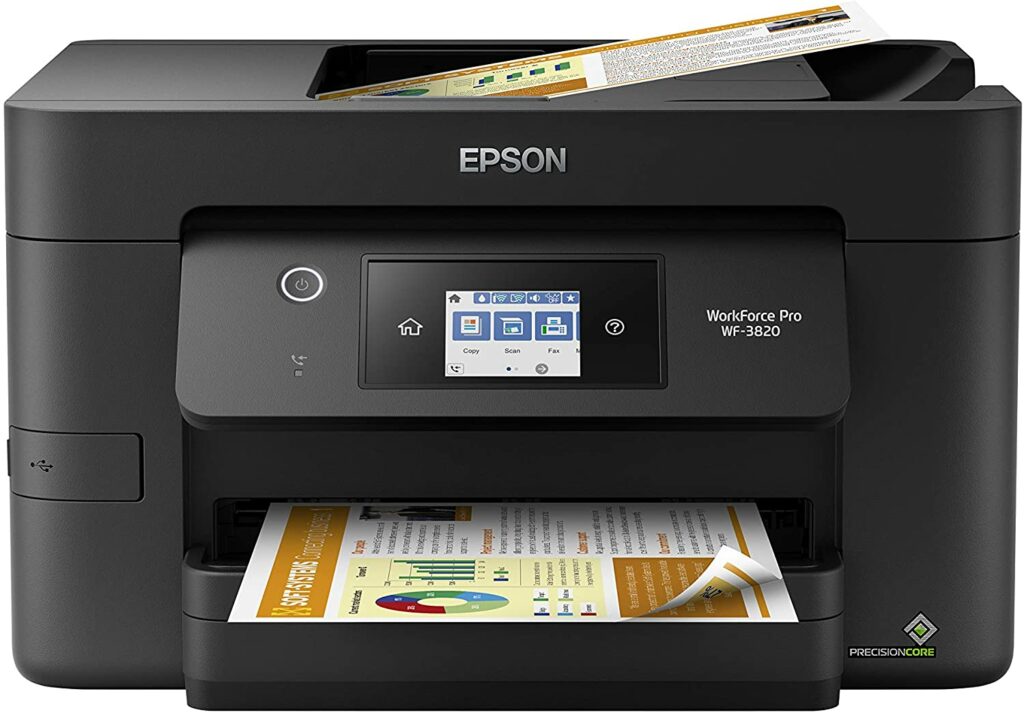
The Epson WorkForce Pro WF-3820 is one of the best wireless printers you can buy for your home if you’re on a limited budget. Despite being inexpensive, the Epson WorkForce Pro WF-3820 offers support for Wi-Fi Direct and Wi-Fi via a router, as well as Apple AirPrint and Mopria Print Service. So when it comes to connectivity, your options are pretty much excellent.
Apart from that, this particular printer also has an Ethernet connector and has the ability to print directly from USB flash drives.
It’s amazingly well-built and durable for the price, while the cartridges and any potential paper jams that may occur are easy to access and fix. Furthermore, a flatbed scanner, automated document feeder, and built-in fax are also among the scanning features of the Epson WorkForce Pro WF-3820.
The overall color document yield is good, and it includes three color cartridges. So you only have to change the color that runs out which can save you money in the long run. As for printing speed, this model generates images at a fair speed, with satisfactory quality and highly accurate colors. While monochrome pages and documents tend to print swiftly as you can imagine.
However, its automated document feeder does not support duplex scanning. This makes the unit have difficulty in processing long, double-sided documents. Additionally, it also has low black page yields, which means you’ll have to replace the cartridge frequently if you’re someone who’ll be printing monochrome pages in bulk.
But aside from those minimal drawbacks, if you’re on a budget, this is still a wonderful wireless printer you should give a solid consideration.
5. HP DeskJet 3755 Compact All-in-One Wireless Printer
Overview
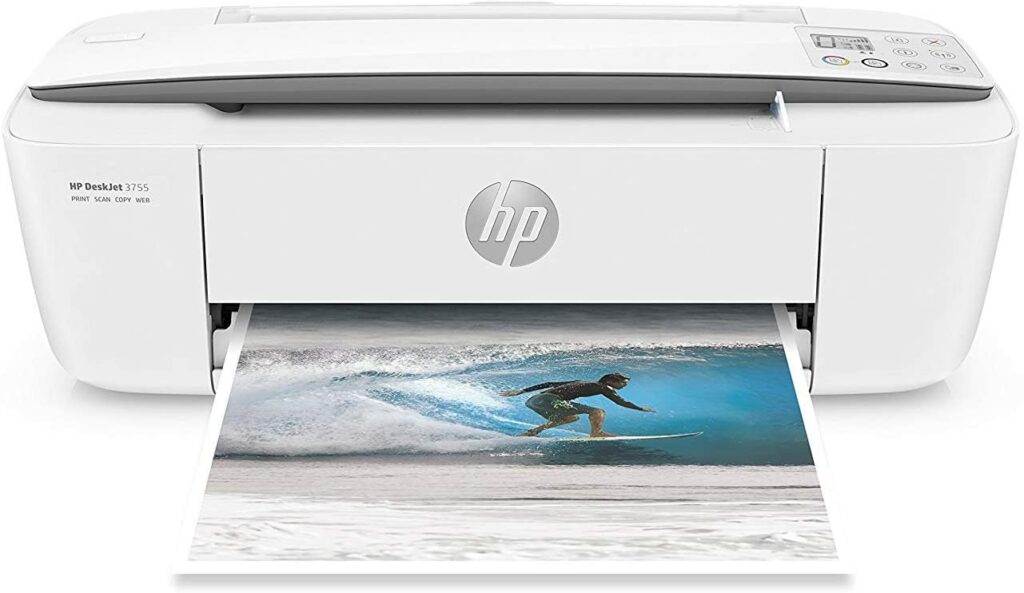
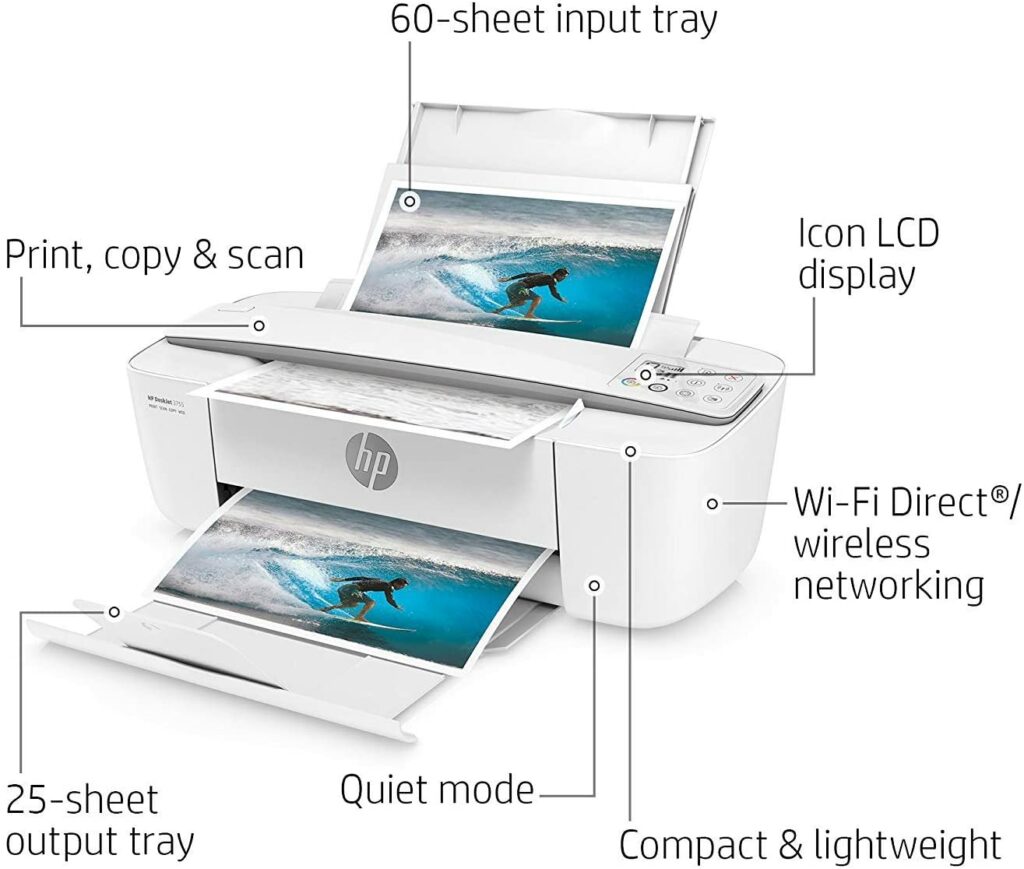
If limited space is a concern when buying printers, you might want to give the HP DeskJet 3755 some consideration if you need a smaller printer for a smaller workstation or home office.
However, it has lower page yields and cost-per-print than the Epson WorkForce Pro WF-3820, and it doesn’t have as many scanning options. But on the upside, it’s smaller, more compact, and produces somewhat more realistic colors with better accuracy.
Unfortunately, the build quality isn’t as nice as well, due to its plasticky frame, making it feel kind of cheap. It also lacks an Ethernet interface and capability for printing directly from external storage, which may limit its usefulness as well as your connectivity options. It also takes a lot longer to print out both monochrome and colored pages.
Overall, the HP DeskJet 3755 is a solid printer for home use. The design and build quality are adequate at best, and its small size and light weight make it an appealing option for those with limited room and workspace. However, keep in mind that whether you’re printing in black or color, it produces a very little number of pages, resulting in one of the highest cost-per-prints on this list.
The HP DeskJet 3755 also prints pages quite slowly, and its scanner features are generally unsatisfactory. But it definitely shines when it comes to producing good photo printing quality along with amazing color accuracy. So if you don’t mind these compromises in exchange for compactness and getting to save money, then you can’t certainly go wrong with the HP DeskJet 3755.
Features & Specifications
Type Of Printer: All-In-One
Product Dimensions: 15.86 x 6.97 x 5.55 inches
Product Weight: 5.13 lbs.
Technology: Inkjet
Printing Speed: 8 ppm (black), 5.5 ppm (color)
Paper Sizes: 3 x 5 inches up to 8.5 x 14 inches.
Paper Capacity: 60 sheets
Color: Stone, Seagrass, and Blue.
Extra Special Features: Supports Alexa voice commands, HP Instant Ink (optional), and HP Scroll Scan
Pros
Prints out excellent photos.
Nice color accuracy.
Compact and perfect for smaller workstations in your home.
Cons
High costs per print.
Scanning features could be better.
Printing speed is pretty mediocre.
Rating: 7 out of 10
Where Can I Buy The HP DeskJet 3755 Compact All-in-One Wireless Printer?
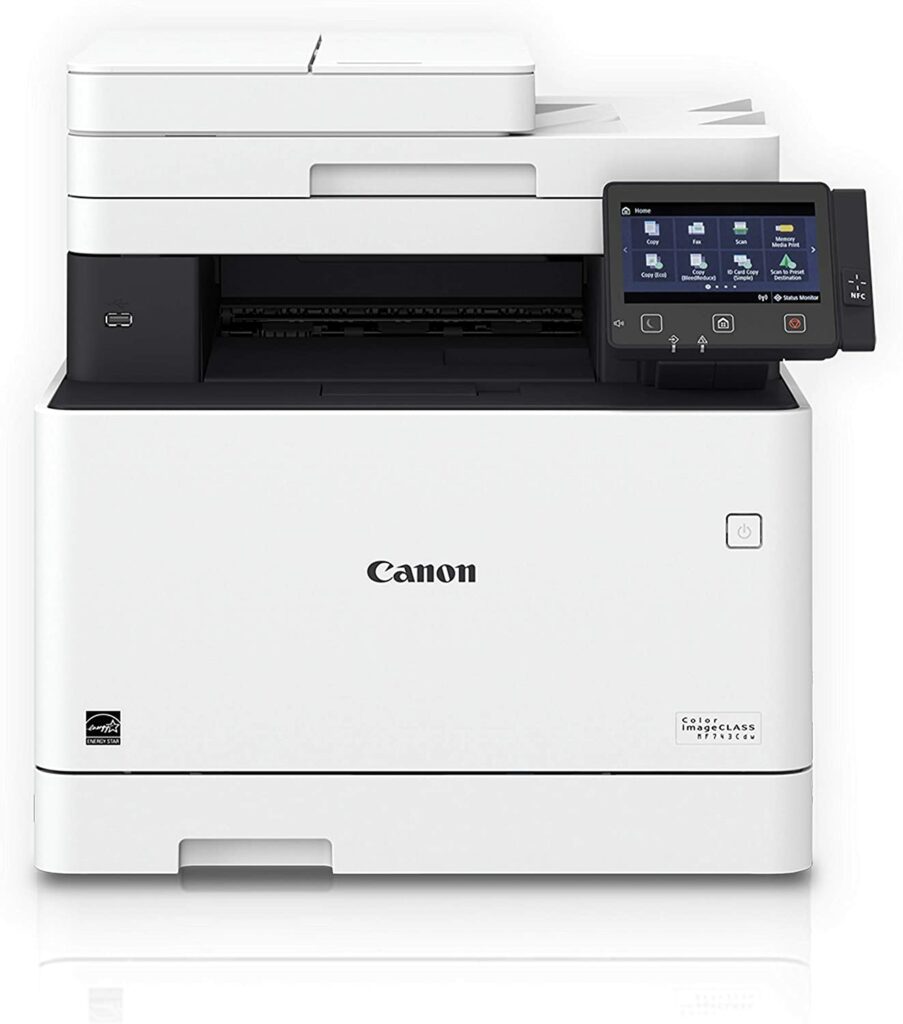
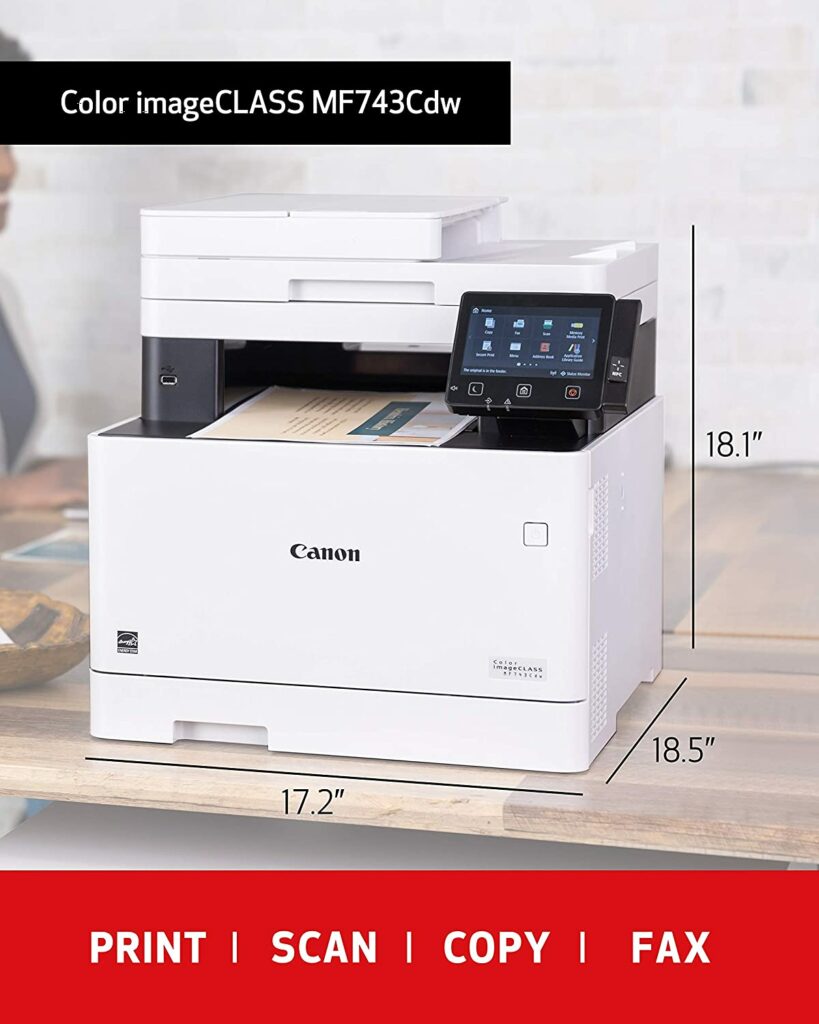
6. Canon Color imageCLASS MF743CDW All-in-One Wireless Printer
Overview
If you’re tired of seeing inkjet printers on this list, then the next printer might be a pleasant surprise for you. If you’ve been on the lookout for laser printers to place in your home, then try giving the Canon imageCLASS MF743Cdw a chance.
Although its cost-per-print is much higher than some of the printers in this list, the printer itself is less expensive while allowing you to benefit from laser printing technology. It prints color documents a lot faster and with much, much more realistic colors. On top of that, you won’t have to buy the drum unit separately when replacing the toner because the new cartridges have it built-in.
All in all, the Canon imageCLASS MF743Cdw is a fantastic all-in-one printer that is ideal for small home offices. It has a flatbed scanner that can handle large manuals or volumes of paper, as well as an automatic document feeder that can scan in both directions. While toner cartridges may cost you more, they have extremely high yields which imply they won’t need to be replaced as frequently, lowering costs.
Not to mention, the Canon imageCLASS MF743Cdw is fairly easy to connect to because it’s supported by a wide range of connecting methods for you to choose from.
Features & Specifications
Type Of Printer: All-In-One
Product Dimensions: 18.8 x 18.8 x 18.4 inches
Product Weight: 64 lbs.
Technology: Laser
Printing Speed: Up to 28 ppm (black)
Paper Sizes: Up to 8.5 x 14 inches
Paper Capacity: 50 sheets
Color: White
Extra Special Features: Works with Alexa, 5″ intuitive color touchscreen with smartphone-like usability.
Pros
Many connectivity options to choose from.
Supports Alexa voice commands.
Great high quality build and design.
Relatively low costs per print with monochrome pages.
Offers high-yielding cartridges.
Cons
Printing speed could be better for black and white pages.
Bulky.
Rating: 8.5 out of 10.
Where Can I Buy The Canon Color imageCLASS MF743CDW All-in-One Wireless Printer?
Now that we have rounded up our top choices for the best wireless printers for home use this 2021, I hope we were able to help you come to a decision on which printer is best suitable for you. If you’re still on the fence, fret not! Just keep in mind what you’re planning to print, how much you’ll be printing, and how much you’re willing to pay upfront and per page. Once those are answered, you’ll surely find the perfect printer for you.
Do you already own a wireless printer for your home office? Did your favorite unit make it into your list? Or are you still deciding which one to get? Let me know in the comments section below if you have any questions, suggestions, or insights to share. I would love to hear all your thoughts!
Find the best laptop to run your small business in can be often tricky. There are so numerous factors to consider that some might find it overwhelming. However, with the help of this laptop buyer’s guide this 2021, you won’t have to worry if you don’t have much technical knowledge or experience with these compact computers. Once you understand the basics of what makes a decent laptop, the shopping process will be less stressful and a lot easier for you.
So if you’re a small business owner looking for some help in buying your next laptop, just scroll down to read more about our essential tips and everything you need to consider!
Since the dawn of technology, there has been a long-standing dispute about which device is better: a laptop or a desktop?
Truthfully, there are no right or wrong answers here. Both gadgets have their benefits and drawbacks, and neither is superior to the other. It all boils down to your personal preference and requirements to keep your small business running.
However, because of how quickly technology evolves and advances, people are finding it increasingly difficult to choose between the two. Laptops are now being designed to manage more power by including advanced internal components, effectively closing the performance gap between them and your standard desktop computer. This is one good reason why you should opt for a laptop, but what else is there?
Benefits Of Purchasing A Laptop
If you like portable gadgets because you like to move around or are constantly on the go, a laptop is the best solution for you. So, no matter where you go, you can always bring your laptop with you and never be without it.
Tech enthusiasts and casual consumers used to argue that laptops lacked power, but that is no longer the case. Laptops nowadays come with some of the most powerful internal components, including CPUs and graphics cards, that can easily compete with some of the best desktop PCs on the market.
Keep in mind, however, that not all laptops are the same, and that it is still dependent on the type of laptop you choose at the end of the day. Laptops are suitable for lighter jobs like word processing, streaming, social media management, and working with excel sheets, among others.
However, there are laptops now on the market that can easily handle high workloads and run demanding apps in a breeze. Though this comes at a higher cost naturally. There are also laptops that can be connected to an external graphics card or GPU to give it an extra boost of power.
One major drawback, however, is that while many laptops today offer more capability, they can also be quite expensive. Budget-friendly options may be lackluster in terms of performance, although this isn’t always the case. If you’re on a tight budget, you’ll certainly have to expect sacrificing advanced or modern features and specifications in a laptop that you’ll find in more high-end models.
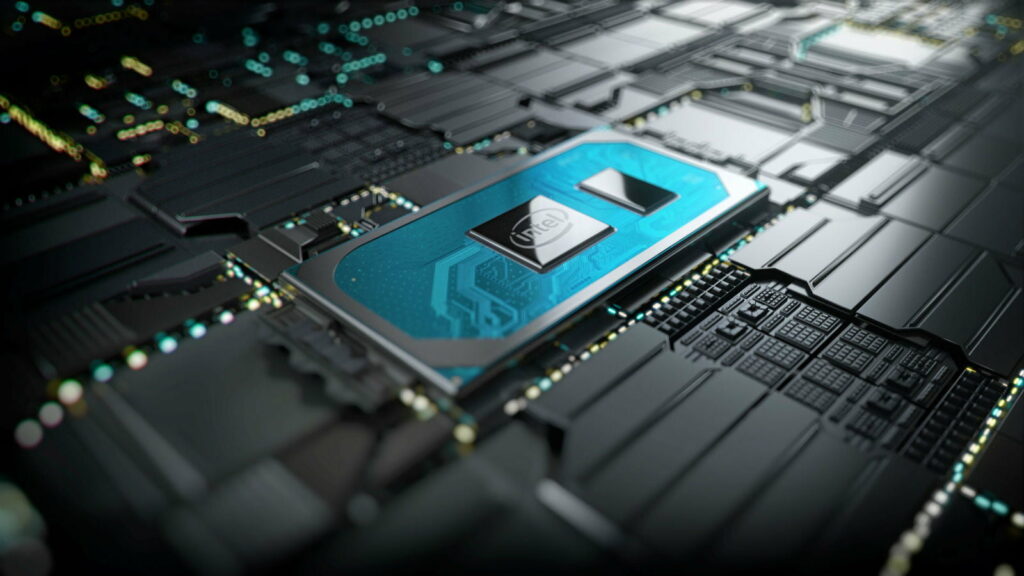
When shopping for a laptop, one of the most crucial considerations to make is the system’s inbuilt CPU or GPU.
The CPU, or central processing unit, is primarily responsible for executing instructions and allowing your computer to interact with all of the apps and programs that it has loaded.
Meanwhile, its counterpart, the GPU, or graphics processing unit, is a specialized processor originally designed to accelerate graphics rendering. GPUs can process many pieces of data simultaneously, making them useful for machine learning, video editing, and gaming applications. You can also find out more about CPUs and GPUs here.
Laptop processors with four or more cores are already commonplace and accessible in modern laptops today. Allowing them to perform both basic email checking and the more demanding business programs and applications you need for work.
Our Recommended Processors
Intel’s latest 11th Generation “Tiger Lake” CPUs are found in many top-of-the-line business laptops. Older 10th Generation “Ice Lake” and “Comet Lake” CPUs, on the other hand, are still easily accessible and capable of handling most jobs. For particularly demanding applications, Hexa-core processors, such as the latest top-end Core i7 and Core i9 CPUs, will be required.
Apart from that, due to the advent of Tiger Lake processors, laptops with older generation processors may also see a price drop, which is good news if you’re on a limited budget.
Eight-core Core i9 CPUs, which were previously only available and shown on desktops, is now available in some bigger workstation-grade laptops for designers, engineers, and professional data crunchers. AMD-based laptops that employ the Ryzen Pro are still pretty much rare, though they’re starting to show up in established business laptop manufacturers like Lenovo’s ThinkPad series.
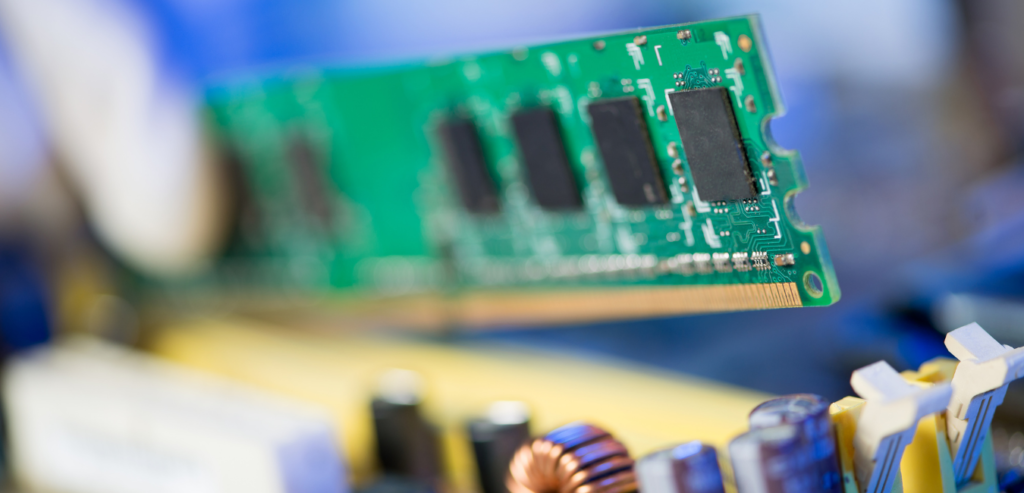
If you’re planning to use your laptop mostly for work to operate your small business, go for laptops with 8 GB or 16 GB of RAM as much as possible. You may believe that 4 GB of RAM is sufficient, but it’s best to future-proof your next laptop purchase so that you won’t need to upgrade it for at least the next handful of years.
If you do a lot of graphics design, video editing, or other heavier tasks on a daily basis, 16 GB of RAM is the minimum spec you need to aim for. With that much RAM, you can easily run many programs, windows, and browser tabs at once, as well as do multimedia tasks like photo editing and video processing considerably more quickly.
Storage
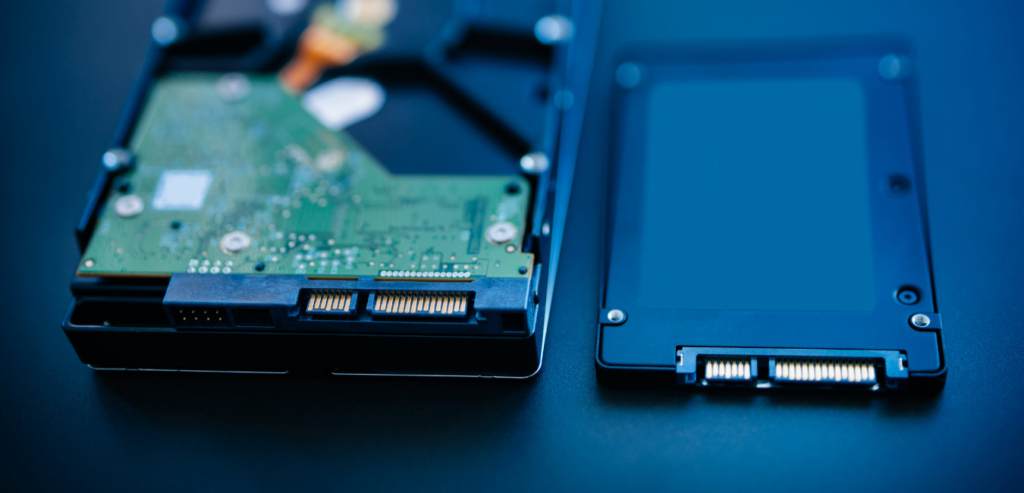
A laptop’s hard disk drive (HDD) or solid-state drive (SSD) can have a few different effects on its performance. While SSD is widely favored and chosen by the majority since it runs software much faster, a handful of you may still choose HDD because it is less expensive. Let me explain the difference between the two if you’re still undecided.
An HDD is a data storage device for your laptop made up of a metal disk with a magnetic coating. A read/write head on an arm reads the data as the platters are rotating.
On the other hand, data on SSDs is stored on interconnected flash memory chips that, like a hard drive, maintain the data even when the power is turned off. These flash chips are not the same as those used in USB thumb drives, and they are typically faster and more reliable.
Personally, I prefer laptops with SSDs, but if your budget doesn’t allow for it, HDDs aren’t too bad either.
Battery life
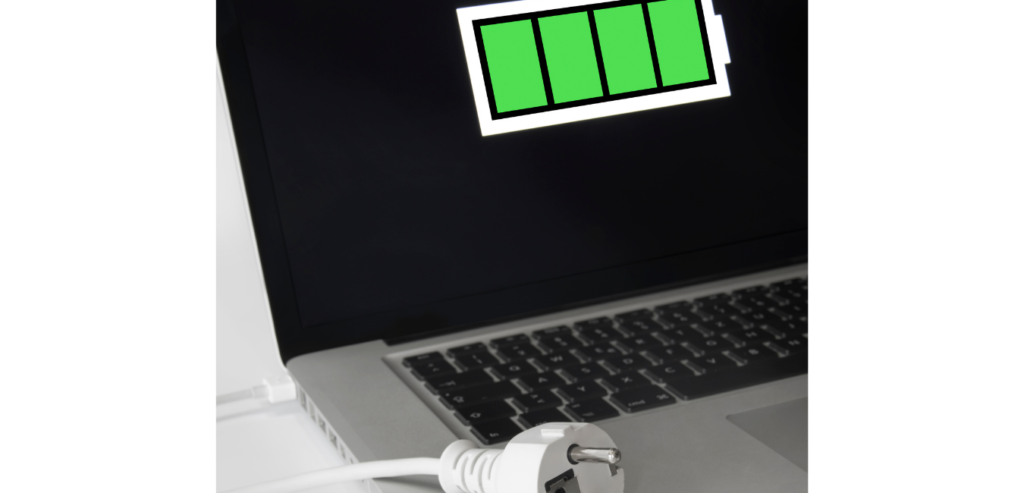
For some business owners, battery life is not a big deal. While for others, it can be a make-or-break decision. To know which one are you, just simply consider and observe how frequently you’ll be using your laptop without access to power.
In any event, checking the battery life of every machine you buy is a good idea. Keep in mind that different measures are used by different laptop manufacturers to measure battery life, thus each one’s given statistic should be treated as an estimate rather than an absolute reality.
Some laptop manufacturers charge extra for add-on batteries. While these batteries can significantly prolong the energy life of a work laptop, they also add a significant amount of weight to the machine, so consider the total weight before purchasing an additional battery pack.
Choosing between Windows, Apple’s macOS, and Google’s Chrome OS is not an easy decision to make. Especially if you’re not that familiar with these operating systems. So to help you out, I’ve written an explanation for each OS below.
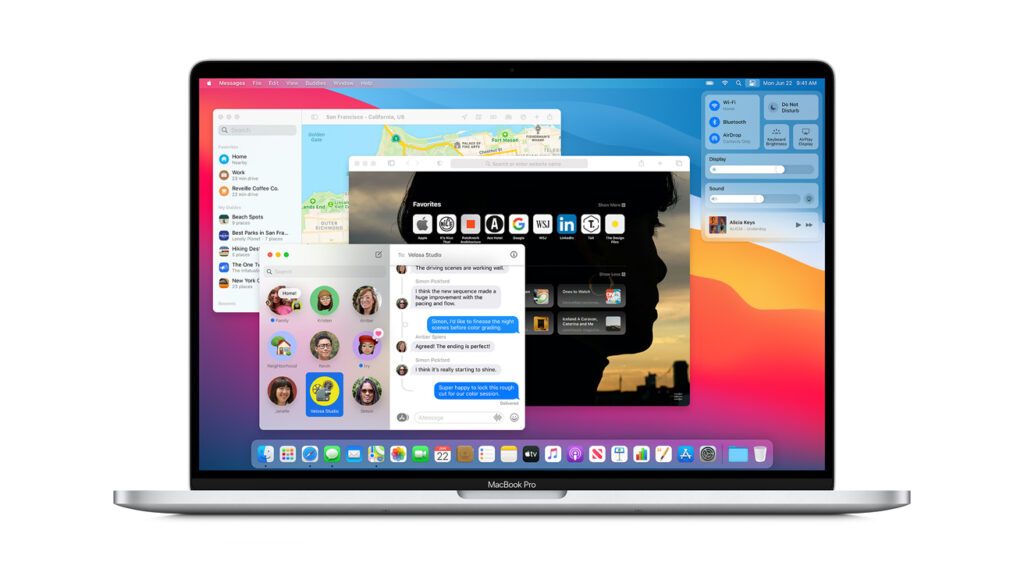
macOS
Apple’s OS X laptops are pretty expensive. But many die-hard Apple fans are willing to pay more for a premium machine with a well-designed interface. Apple laptops have long been prized by creative workers for their high-resolution screens, function keys, and ability to run high-powered apps like Avid, Maya, and Dreamweaver.
Many creative professionals still buy Apple computers, but it’s no longer the go-to brand, especially since recent MacBook Pros have less RAM than prior models and appear to be more focused on general appeal than niche appeal.
Unless your small business strictly uses a software program that can only function on Mac, the decision to buy a system running Apple OS X comes down to personal preference and how much money you’re willing to spend.
Windows
For most laptops in the market, Windows is the standard operating system. If you choose Windows OS over Chrome OS or Apple OS X, you’ll have a larger selection of laptops to choose from. Windows machines are readily available in every configuration and price range imaginable, so you have a lot of options as you might imagine.
Windows 10, the most recent version of the operating system, includes a number of new features that might help you work more efficiently. Microsoft’s virtual assistant, Cortana, can help you with everything from arranging appointments to checking the weather. Then there’s Task View, which allows you to create multiple virtual desktops for multitasking convenience.
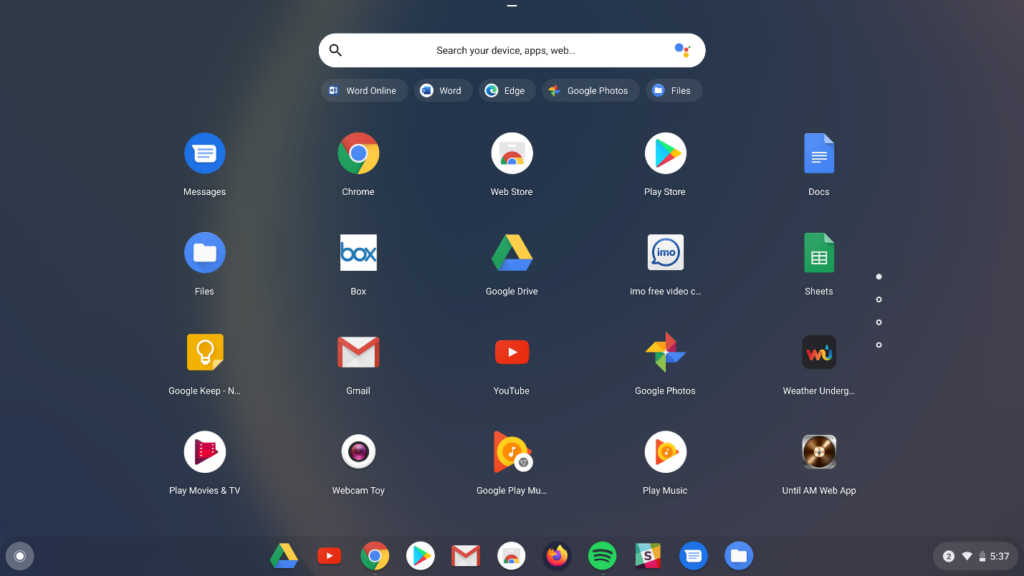
Chrome OS
Google’s Chrome OS is fairly new in the market when it comes to operating systems. So you’re not alone in not knowing what to expect when you decide to buy a Chromebook. Because of their inexpensive price, Chromebooks were primarily designed with students in mind when they first entered the market. Not to mention, they had a lot of limitations too.
However, Chromebooks are now available in a wider range of configurations, including business-oriented laptops that run Chrome OS. Chrome is a wonderful alternative for an entrepreneur who prefers to work in the cloud (Chromebooks don’t allow you to download programs) and doesn’t want to bother about upgrades.
Conclusion
Now that we’ve reached the end of this article, I hope you’re feeling more confident in what you’re looking for in your next laptop purchase. Have fun shopping!
Have you already purchased a work laptop? How was the experience for you? Let me know in the comments section below if you have any insights or suggestions to share or questions to ask! I would love to hear all your thoughts about it!
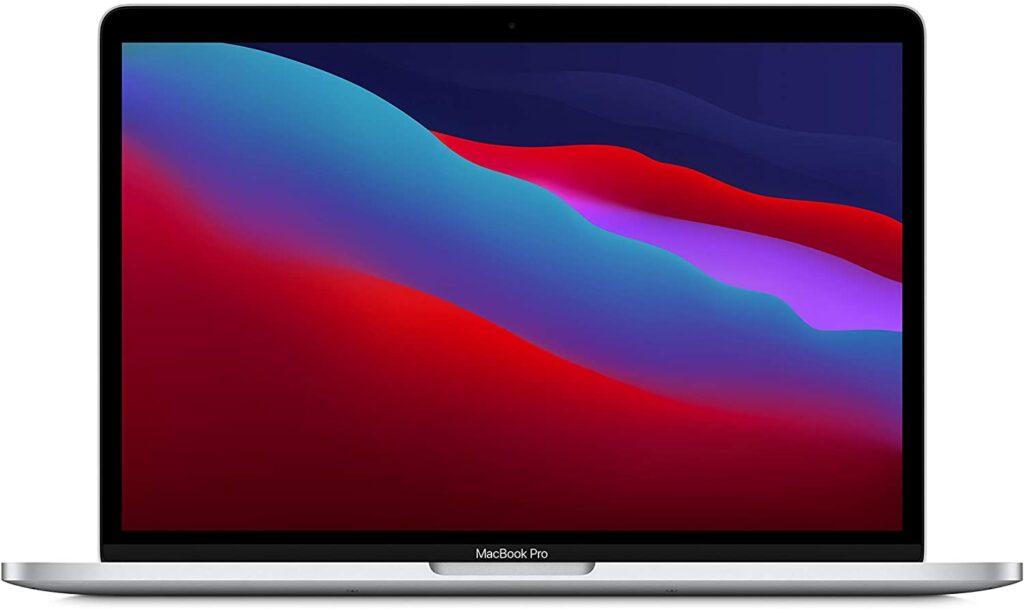
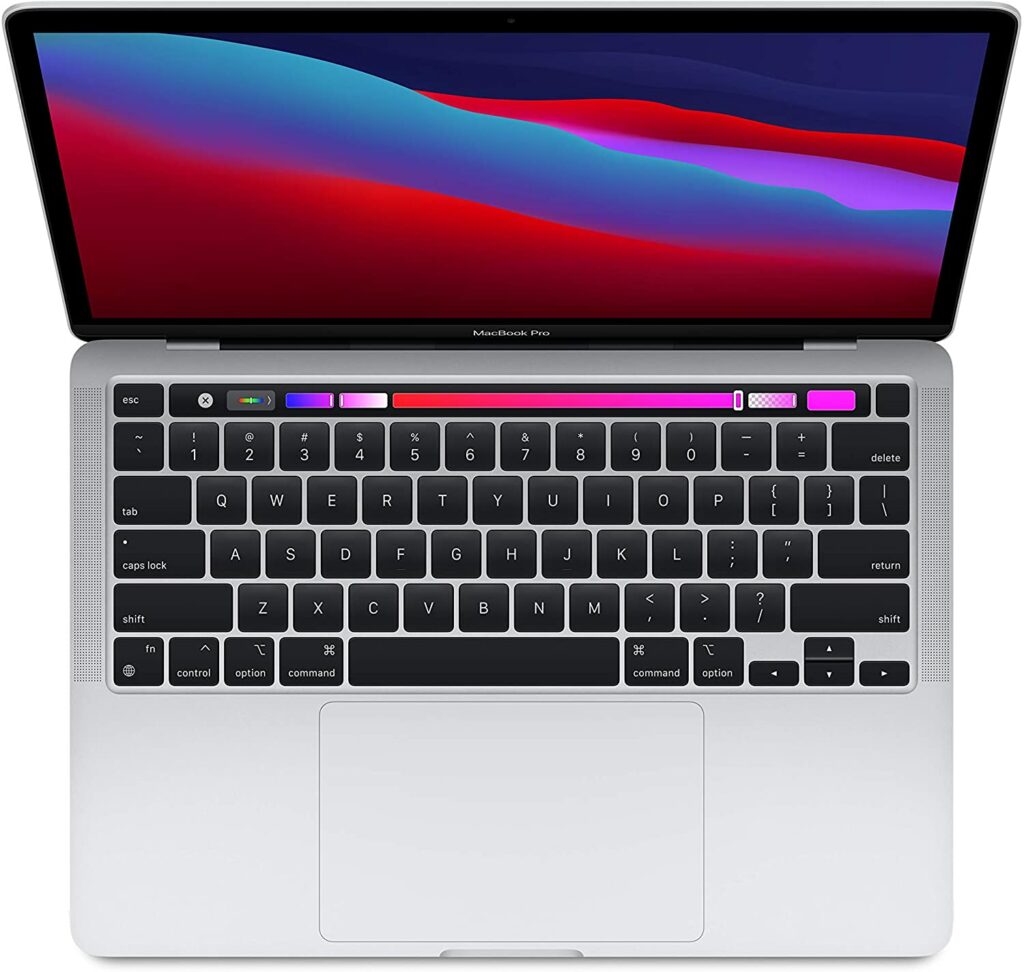
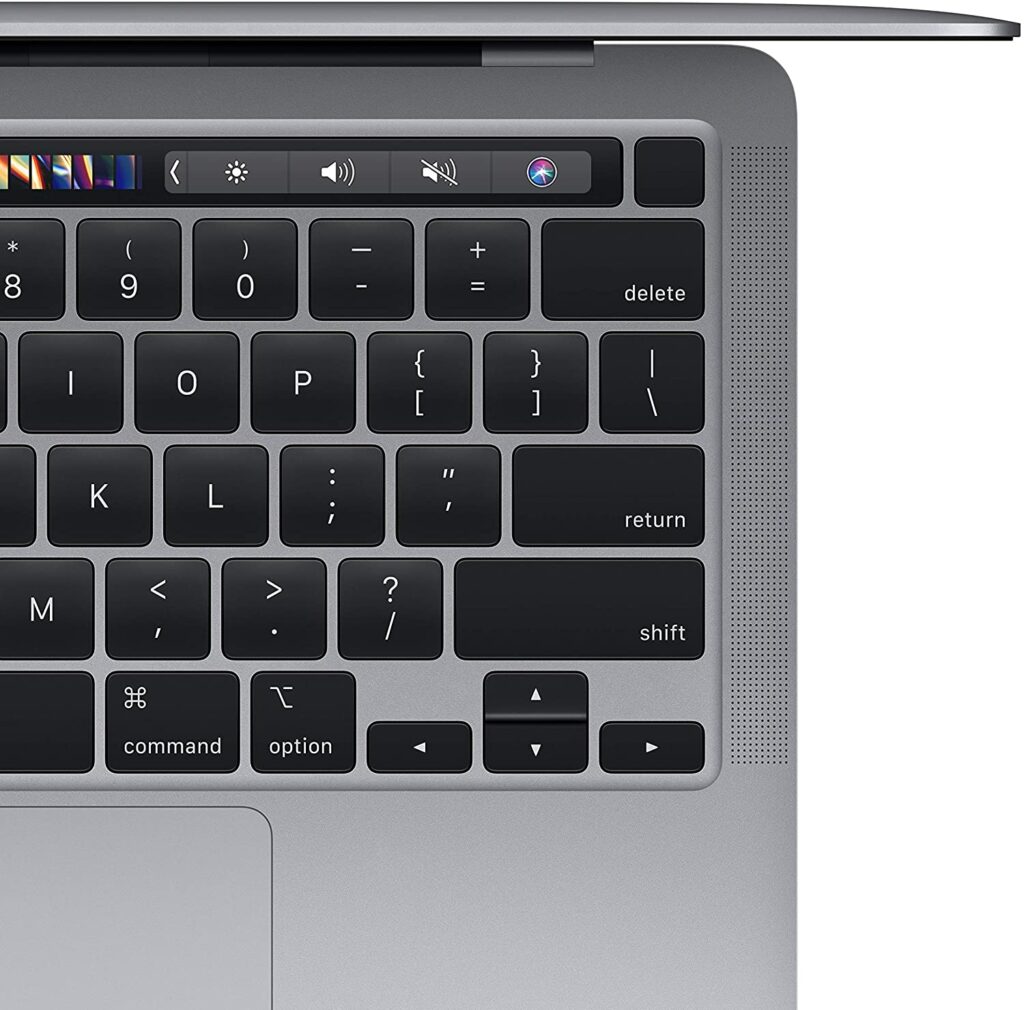
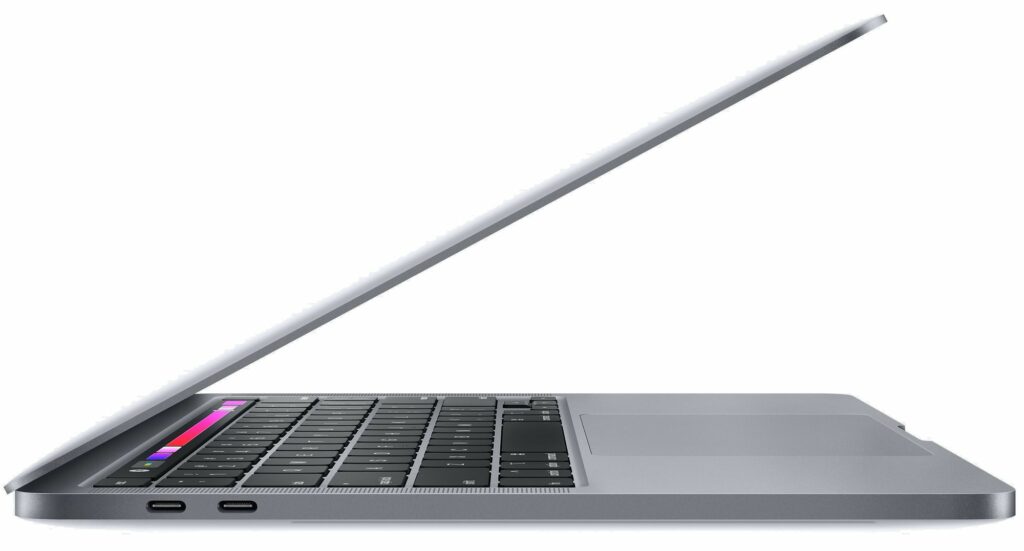
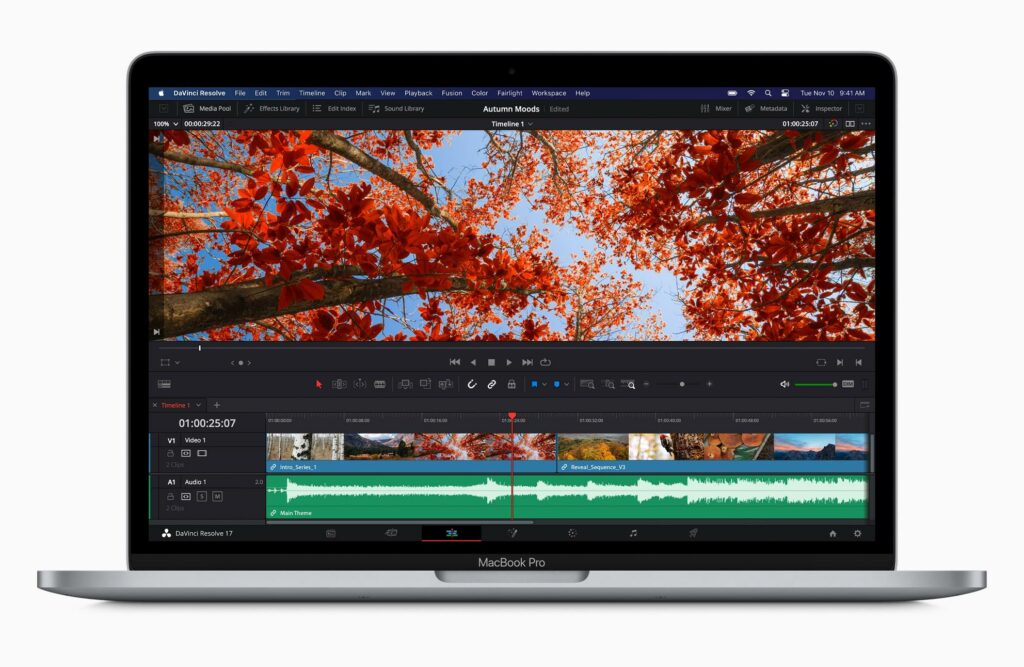
The latest 13-inch MacBook Pro from Apple has just received its biggest refresh up to date. With the introduction of the now legendary M1 chipset, it’s now the most powerful laptop from Apple’s lineup of computers as of writing. The M1 chipset boasts a significant boost in performance as well as in its battery life. So just how powerful exactly is this laptop? Let’s find out in our review below.
Apple’s newest iteration of their 13-inch MacBook Pro makes up for its lack of a redesign by providing a significant performance bump in its hardware. The smallest MacBook Pro in the lineup was able to retain all of the features we loved from its predecessors but made even better. It is now more powerful and lasts longer than before.
This is all thanks to Apple’s M1 chip. This particular processor greatly increases the power and efficiency of the Macbook Pro dramatically. I dare even say that this can easily substitute your standard desktop PC. This is undoubtedly a beast of a laptop that will satisfy even the most power-hungry tech fans.
What Makes The M1 Chip So Good?
The introduction of the M1 chip into Apple’s lineup of computers and tablets has definitely moved them into a new era as well as putting themselves at the forefront of the market and competition.
For plenty of years now, Apple has always relied on using Intel CPUs to power all their computers. Apple’s M1 chip is the first step in the company’s deliberate decoupling from Intel. The 16 billion transistors in the ARM-based 5-nanometer chip are the most the company has ever packed into a single chip.
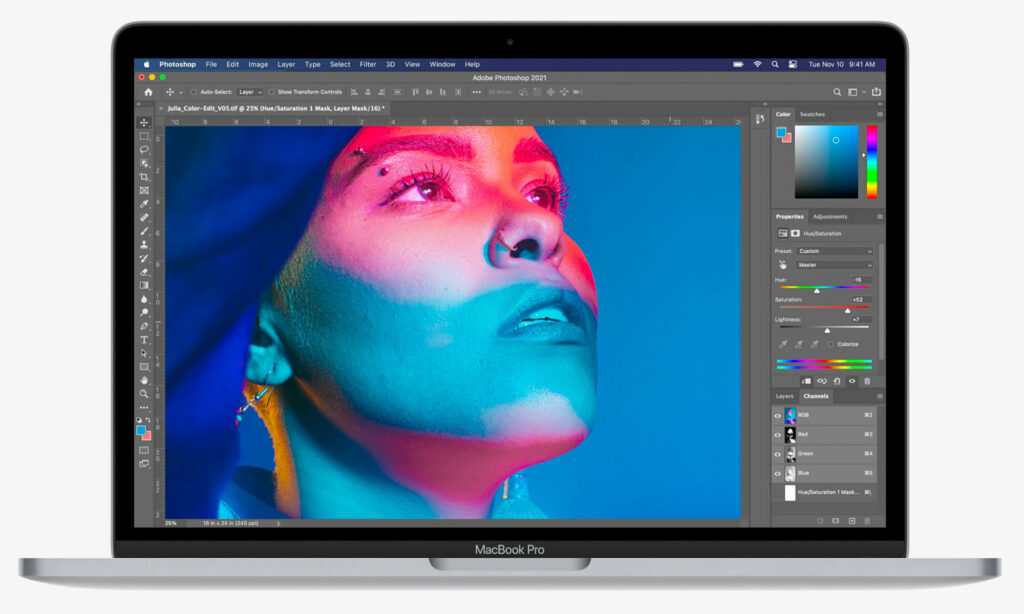
With that being said, the M1 chip is a huge upgrade to their computer lineup and one of the biggest leaps we’ve seen so far for Apple’s products. With the M1 chipset powering up the Macbook Pro, we’re talking about having video editing capabilities in 4K and even up to 8K!
To put it simply, that means it can tackle pretty much any task (whether it be professional or recreational) you throw at it while still maintaining a sophisticated and stylish look with Apple’s signature sleek design.
The System on Chip (SoC) also has an eight-core processor, integrated graphics, a unified memory architecture, Apple’s Neural Engine, an enhanced image signal processor, and Apple’s Secure Enclave, in addition to all those transistors. The result? You get a beast of a machine that’s faster and has more power packed into a slim and sleek laptop that you can take with you anywhere.
And in case the 13-inch isn’t enough for you, you can also opt for the 16-inch version of this laptop.
Features & Specifications
Dimensions: 13.41 x 11.97 x 0.61 inches
Item Weight: 3 pounds
Brand: Apple
CPU: System on Chip (SoC) Apple M1 chip; 8-core CPU with 4 performance cores and 4 efficiency cores; 16-core Neural Engine
Graphics: Integrated 8-core GPU
Operating System: MacOS
Screen Size: 13.3-inch (diagonal) LED-backlit display with IPS technology
Resolution: 2560-by-1600 native resolution at 227 pixels per inch with support for millions of colors, 16:10 aspect ratio
RAM: 8GB – 16GB unified memory
Storage: 256GB or 512GB SSD
Ports: Two Thunderbolt / USB 4 ports with support for: Charging, DisplayPort Thunderbolt 3 (up to 40 Gbps), USB 3.1 Gen 2 (up to 10 Gbps)
Battery Life: Up to 17 hours wireless web browsing, may differ depending on usage.
Extra Special Features: LED-backlit Retina display, True Tone technology, P3 wide color, FaceTime HD Camera, Three-mic array, Touchbar, Touch ID, and Magic Keyboard.
See The Preview & Highlights For The 13-Inch MacBook Pro With The M1 Chip Below.
According to Apple’s claims, the 8-core CPU found in the M1 chip is the highest-performing CPU they have ever built, by far. It combines four performance cores and four efficiency cores to tackle demanding multithreaded activities while at the same time, giving in a massive performance improvement while only using a fraction of its power as well as a huge boost in its overall battery life.
To add to that, Apple also boasted that the M1 chip’s CPU is also outrageously fast and powerful that it can complex workflows and heavy workloads, with up to 2.8x faster-processing performance than the previous generation.
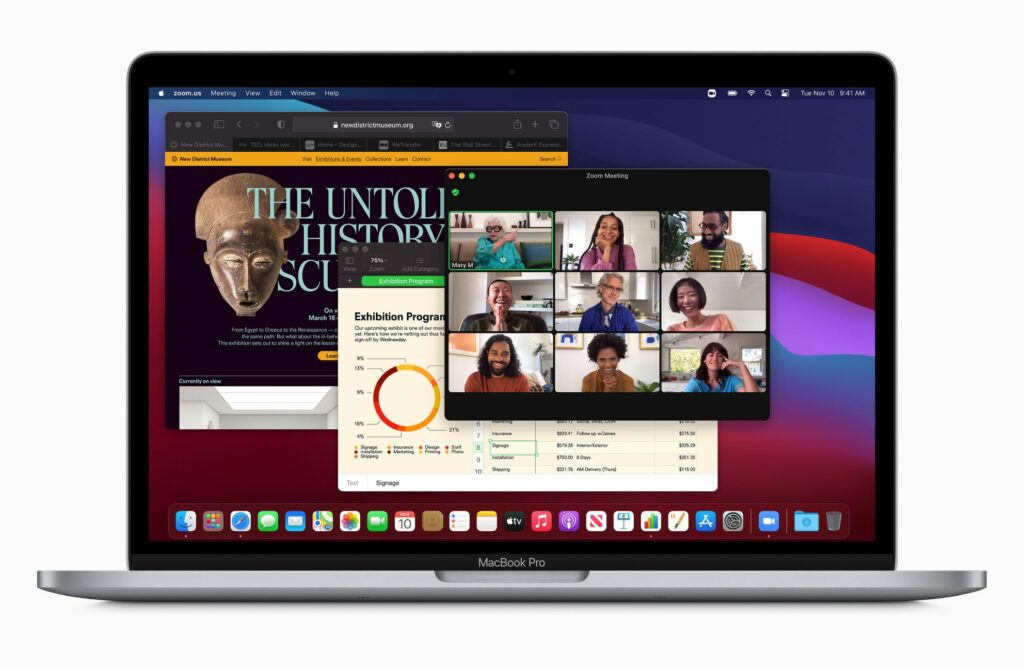
Specifically, the latest MacBook Pro is supposedly 5.9 times faster in the 3D title render speeds in Final Cut Pro, 2.8 times faster at constructing Xcode projects, 2.9 times the performance in Shadow of the Tomb Raider, and twice as fast vector performance in Affinity Photo, all thanks to its GPU. With that in mind, we have been impressed by this particular MacBook Pro’s performance so far.
When it came to video editing, the MacBook Pro didn’t disappoint either. Final Cut Pro, which is Apple’s video editing software has been updated to run on the M1 chip. Safe to say that while editing an 8K video, the MacBook Pro held up commendably and was truly remarkable.
The MacBook Pro still has fans built into its system, and they do come on after a time when you’re performing more intensive work on it. Keep in mind that the rear of the laptop can also get quite warm at times. The fans, on the other hand, are never overly obtrusive, and you’ll never hear them during everyday use.
Longer Battery Life
Just like with the M1 chip, Apple also made huge claims about this MacBook Pro’s battery life. According to Apple, the 13-inch MacBook Pro has the highest battery life ever found in a Mac computer. It is supposed to last up to 17 hours of wireless web browsing and routine email checking while video playback will last you for up to 20 hours. Compared to its predecessor, this is 10 hours more of battery life.
Again, these are large claims from Apple, and you’ll probably use the MacBook Pro 13-inch for a lot of heavier work than that, but so far Apple’s battery claims to be relatively accurate in the past and until now. Just keep in mind that more intensive tasks will naturally drain your MacBook Pro’s battery life at a faster rate.
Our Least Favorite Thing
Same Old Design
Don’t get me wrong, the Apple MacBook Pro doesn’t ugly by any means. But seeing the same design on the MacBook Pro over and over can somewhat feel boring after a certain amount of time. So a redesign or a change would have been greatly welcomed.
Take the iMac for example. Apple was able to give it a nice update by providing you with more fun color options to choose from. Even the MacBook Air gives you more colors to suit every taste. So why not the same treatment for their MacBook Pro lineup?
In A Nutshell
Pros
Huge performance boost due to the M1 chipset.
Beefy and longer-lasting battery life.
Can also run iOS applications.
The best webcam in a laptop.
Fast SSD.
Cons
Ridiculously expensive.
No other significant upgrades aside from the M1 chip.
Same old design.
Our Final Verdict
All in all, the latest generation of the 13-inch MacBook Pro is very impressive thanks to the M1 chipset. It’s an excellent laptop with a significant performance boost and a longer-lasting battery life that paints a very bright future for Apple and will truly make you excited and look forward to what else they have in store for us.
However, as great as the M1 chip is, it is really the only significant upgrade the Pro 13-inch receives and that’s about it. In case you have a 2019 or early 2020 model of the MacBook Pro, I highly recommend definitely waiting for a few generations before you upgrade to a new MacBook Pro with the M1 processor.
But if you have the money to spare and you’re that desperate for power, then, by all means, go ahead and get your hands on this powerful device. The M1 chip is without a doubt a huge and significant upgrade. This new model is 2.8 times faster than the previous generation, and it also has longer battery life. Not to mention, it’s also three times faster than Windows laptops within the same range of performance.
Do you already own the latest generation of the 13-inch MacBook Pro from Apple? Or are you still on the fence about purchasing it? Let me know in the comments section below if you have any insights or questions to share with us. We’d love to hear all your thoughts about this product!